![2617210b577d672136104a4f5660e04f07acf843-removebg-preview.png]](https://help.knowledgeanywhere.com/hs-fs/hubfs/2617210b577d672136104a4f5660e04f07acf843-removebg-preview.png?height=40&name=2617210b577d672136104a4f5660e04f07acf843-removebg-preview.png)
Table of Contents
- What Course Studio Is
- Where to Find It
- Features at a Glance
- The Main Pieces, Briefly
- Getting Started
1. What Course Studio Is
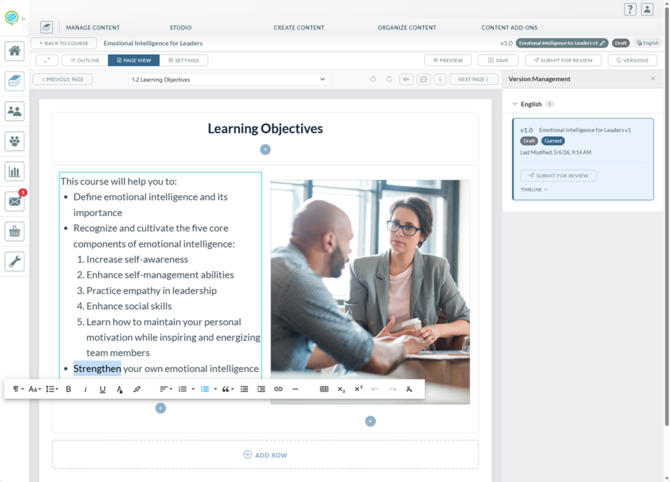
Course Studio is a course authoring built into the Knowledge Anywhere LMS. It's where course developers can design, structure, style, review, and publish the online courses. It brings a visual page editor, hierarchical outline, AI authoring tools, reusable templates, branding controls, collaborative review, and full version control together in one workspace.
Studio is designed so that:
- LMS administrators with the Developer or Editor role and a Studio license can build rich, responsive online content without writing any code.
- Collaborators can approve or reject content before it is published for learners.
- Administrators can ensure consistency through templates, branded styling, and role-based permissions.
2. Where to Find It
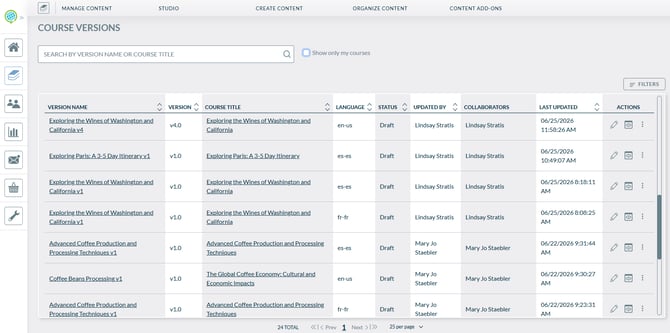
Course Studio lives in the Content section of the LMS admin area, under the Studio dropdown header. Depending on your permissions, you may see:
|
Nav item |
Purpose |
|
Studio → Courses |
The course grid; create, open, review, publish, and manage course versions |
|
Studio → Course Styling |
Manage styling configurations and domain defaults |
|
Studio → Page Layouts |
Manage page layout templates |
|
Studio → Course Templates |
Manage full course templates |
3. Features at a Glance
|
Feature |
What it does |
|
Outline builder |
Build a course's table of contents as a tree of sections and pages |
|
Page editor |
Design responsive pages with rich text, images, video, layouts, and interactive blocks |
|
Assistant AI for Studio |
✨Use optional AI content authoring tools to create, improve, or review content. |
|
Page types |
Mix standard content pages, video pages, and assessment pages within one course |
|
Course templates |
Start new courses from pre-built outlines |
|
Page layout templates |
Drop in pre-built row/column page layouts as starting points |
|
Interactive Blocks |
Built-in interactions and exercises that can be added to pages. |
|
Course styling |
Set up design templates to standardize course appearance — site-wide or per-course |
|
Version control |
Move content through Draft → In Review → Published → Archived stages |
|
Completion criteria |
Configure exactly what counts as "complete" for each course |
|
Learner progress tracking |
Show learners visual progress (bars, counters, status icons) and track time spent |
|
Publishing validations |
Block publish when courses have empty sections or other configuration errors |
|
Comments and @mentions |
Leave feedback on pages or specific content blocks, with separate internal and review conversations |
|
Edit session indicators |
See who else is currently editing so you don't collide |
|
Undo and change history |
Keyboard undo plus a persistent server-side history with restore |
|
Copy/paste between pages |
Move rows and blocks between pages cleanly |
|
Import |
Import a PowerPoint or Word file to create a course, including Word files exported from Storyline |
|
Export |
Export a course as PDF, Word, or XLIFF |
4. The Main Pieces
The Outline and Page Editor
The outline is the framework of the course a drag-and-drop tree of sections (folders) and pages (what learners actually see). The page editor is where you fill those pages in: rows and columns of content blocks like text, images, videos, and callouts. Content saves automatically as you work.
Learn how to create your first course here.
Page Types
Every page is one of four types: a Standard page for text and images, a Video page for video-centric lessons, PDF page for one sheet viewing, or an Assessment page as a knowledge check or a final test. Each type behaves a little differently for learners. For example, video and PDF pages can track watch percentage, and assessment pages can determine course completion.
Templates
Two independent template systems both work on a "copy on create" model, they give you a starting structure, but the course is independent of the template afterwards:
- Course templates are full course outlines with sections, pages, and pre-translated placeholder content. There are many Course Templates available from microlearning, video-centric learning, and for several major industries.
- Page layout templates are reusable single-page structures (row/column layouts). Layout templates are ideal to utilize a building blocks to use again and again without having to scratch create a new layout... it provides a unified familiar flow.
Learn more about Layouts and Templates here.
Styling
Course Studio controls a course's visual appearance; items like colors, fonts, logos are configured through reusable styling configurations. Unlike templates, styling is live-linked: republishing a styling config immediately updates every course using it. Styling can be set platform-wide, per microsite, or for a specific course. These styles allow you to imprint your organization's branding, so the course looks like a natural extension.
Learn how to work with Styles here.
Assistant AI for Studio
✨Assistant AI for Studio is an optional add-on that provided AI course authoring support. You can use Assistant AI for Studio to draft content, improve content you have written, or review a course (e.g., assess course content against learning objectives).
Learn about Studio Assistant AI here.
Review and Approval
Every course moves through four states: Draft → In Review → Published → Archived. Only one Draft and one Published version exist per course at a time. To update a live course, you create a new version from it (the published one stays live to learners while you work), then republish.
When you're ready for someone else to look at a course, the draft can be submitted for review. The version locks even for the Developer, so the reviewer can examine it without it changing. Reviewers approve or reject; rejection sends it back to Draft with all comments preserved.
Comments come in two modes:
-
Draft (internal author notes, hidden from reviewers)
-
Review (formal feedback) so working notes don't leak into the formal review record.
Understand the Workflow process here.
Completion and Progress
Each course has a configurable completion criteria: Launch Only, Page Percentage, Assessment Only, Minimum Time, or Combined. Learners see real-time progress (bars, counters, status icons) and can resume mid-course where they left off.
The default for a new course is Launch Only, which is rarely what you actually want, set this deliberately in the course's Settings tab depending on what constitutes a completion for your training goals.
Publishing Validations
Before a course can be published, the system runs a validation check for empty sections, missing Final Assessment designation, multiple Final Assessments, and a few others. If anything fails, the publish is blocked with a clear error pointing at the problem. Approval is still valid; you just fix the issue and try again.
Import
You can create a course based on a PowerPoint pptx file. Course Studio creates sections and pages from the slides automatically. Text, images, tables, and embedded video all come across. See Course Studio - Create a Course from a PowerPoint.
If you develop in Articulate Storyline, you can export the course as a Word document and import into Studio. See Course Studio - Importing from Articulate Storyline.
Export
Course Studio courses can be exported as PDF, Word, or XLIFF files.
Learner Version Reset
When you republish a course, in-progress learners on the old version are automatically transitioned to the new version. They see a friendly "Course Updated" notice and start fresh. Learners who already completed the course are unaffected.
5. Getting Started
- For an overview of the process of developing, reviewing, and publishing courses in Course Studio, see Course Studio - Workflow.
- To get started building your first course, see Course Studio - Building Your First Course.