![2617210b577d672136104a4f5660e04f07acf843-removebg-preview.png]](https://help.knowledgeanywhere.com/hs-fs/hubfs/2617210b577d672136104a4f5660e04f07acf843-removebg-preview.png?height=40&name=2617210b577d672136104a4f5660e04f07acf843-removebg-preview.png)
Key Concepts
Before building your Certification content, it helps to understand the building blocks.
Training Steps
A Certification is made up of one or more training steps and a final exam. Each training step represents a distinct requirement in the curriculum. You can control whether and how these steps must be completed before the learner can take the final exam to attain the certification; see Creating a Certification.
Each training step can have one or more completion paths. Completion paths are different options a learner can complete the requirements of the step — for example, learners could complete an online course, attend a classroom session, or submit evidence of external training. If a step has multiple completion paths, the learner only needs to complete one of them. The options are:
- An Online Training path lets you assign one or more LMS learning objects — courses, assessments, learning paths, or resources — that the learner must complete to satisfy the step. You configure the completion rule for the items within the path.
- A Classroom path links the step to an existing classroom course in the LMS. You can configure pre-work and post-work requirements for the classroom course.
- An External Training path allows learners to submit evidence of training or an activity completed outside the LMS — for example, attending an industry conference or completing a third-party course. You configure the instructions and what evidence the learner must provide that the requirement has been met.
- A Test-Out path allows the learner to bypass training content by passing a test.
Every Certification must include a Final Exam step. The exam is an assessment that learners must pass to earn the certification.
The figure below depicts how a hypothetical Digital Photography Certification program could be set up, with the highlighted items depicting one potential completion path.
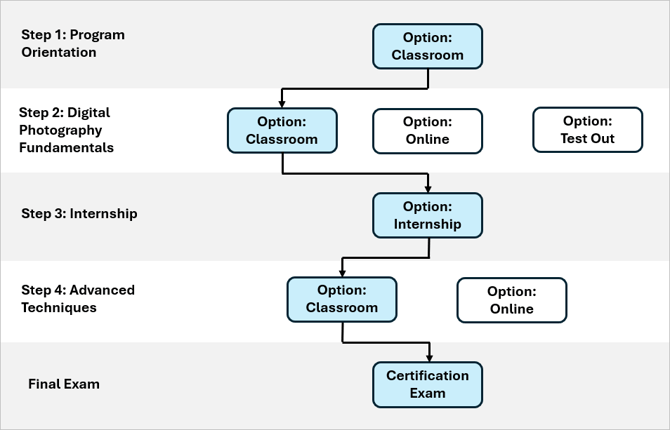
- The first training step is Program Orientation. This step must be completed by attending a classroom session, so there is only one option.
- The second training step is Digital Photography Fundamentals. There are three options for completing this: attending classroom training, taking online training, or testing out. Only one is required.
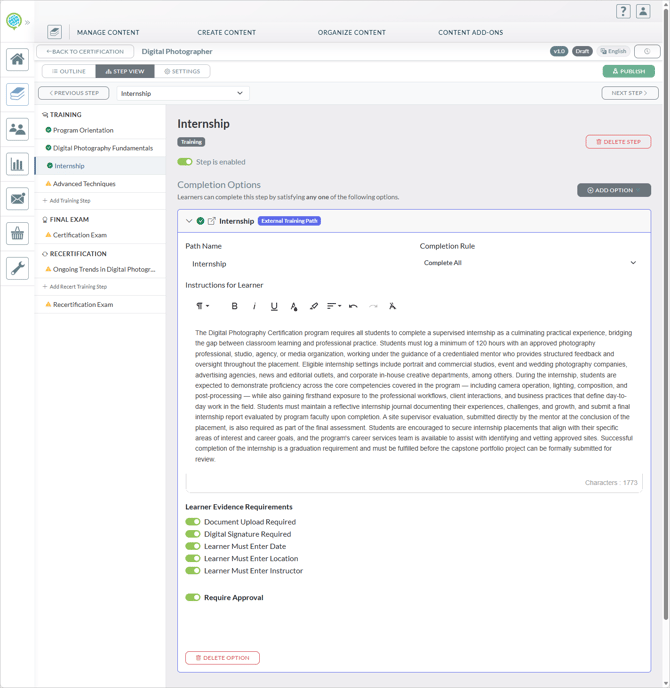
- The third training step is an Internship. This would be set up in the certification as an external training path and the learner would be required to enter evidence of completion, which would need to be approved by an administrator.
- The fourth training step is training on Advanced Techniques, which can be completed either in the classroom or online.
- Finally, the learner must complete the required Certification Exam to receive the certification.
Recertification
You can define separate training steps and a separate exam for the recertification cycle. Recertification content is built in the same way as initial certification content but applies only when a learner is renewing an existing certification. This allows the recertification curriculum to differ from the initial program — for example, a shorter refresher course rather than the full initial training.
Note: Recertification steps are only available in the version builder if recertification has been enabled on the Configuration tab. See Creating a Certification for details.
Here is the Learner view of our Digital Photography Certification. In this article we will build out this Certification.
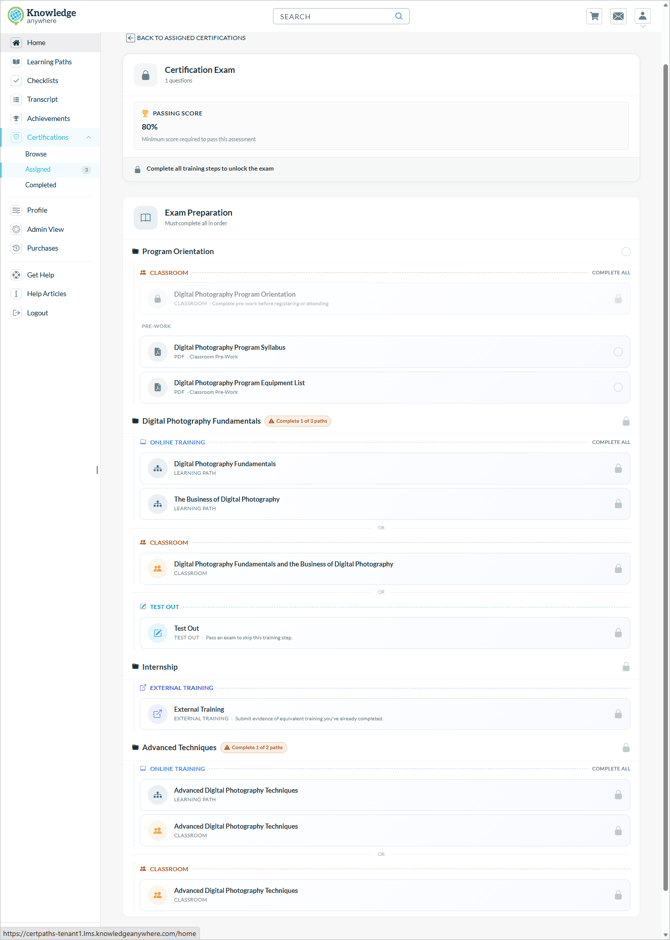
Table of Contents
- Create a Certification Version
- Use the Outline to Build Training Steps
- Using Step View to Enter Options for the Steps
- Create the Certification Exam
- Specify Recertification Content
- Verify Settings
- Publish the Recertification Version
1. Create a Certification Version
Certification content is organized into versions. A version defines the specific steps and requirements learners must complete and is associated with a language. You must publish at least one version before learners can be assigned to or enroll in the Certification.
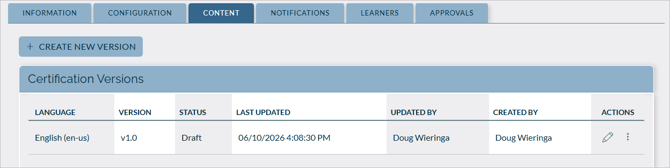
To create a version:
- Navigate to the Certification and open the Content tab.
- Select the option to create a new version.
- Select the language for the version.
Once created, the version appears in the version list with a Draft state. Select the edit icon to open the Version Builder.
Note: You can have only one Draft and one Published version per language at a time. If you need to update a published version, copy it to create a new draft, make your changes, and publish the new draft when ready. Publishing a new draft automatically archives the previous published version.
2. Use the Outline to Build Training Steps
You will now see the Outline View for the Certification version, showing the three main components of the Certification. The Outline view is the starting point for building your curriculum. It shows all the steps in the version and is where you add, remove, and reorder them.
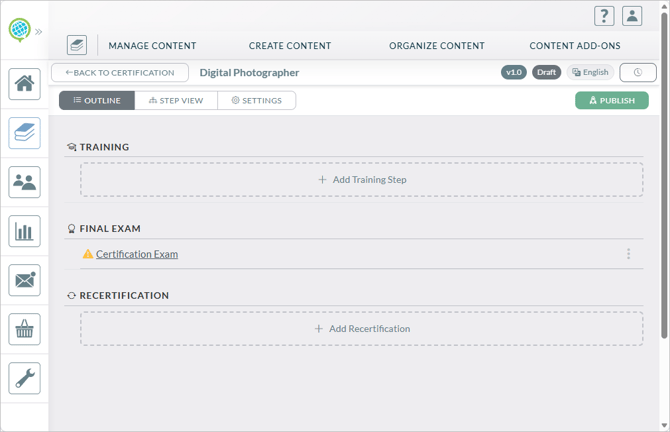
- The Training section includes the training steps for the certification.
- The Final Exam section includes the assessment for the Certification. Learners must pass the assessment to attain the Certification.
- The Recertification section includes the training steps and assessment to become recertified.
To add a training step:
- Click Add Training Step
- Enter the step title.
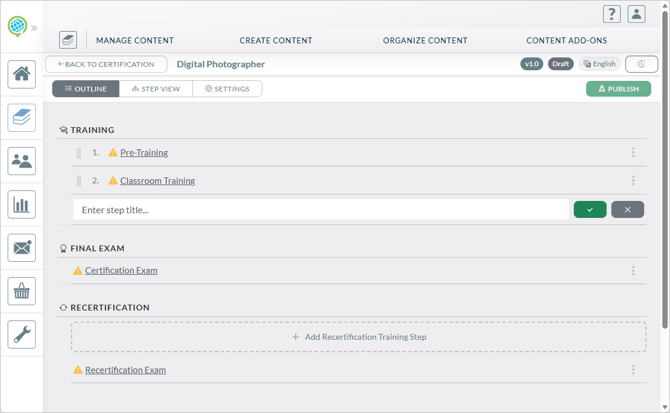
- Drag steps as necessary to set the sequence. If the Completion Rule for the Certification is set to Complete Training in Any Order, the order is for display purposes only. If it is set to Complete Training Before Exam, learners must complete steps in the order shown. See Creating a Certification.
- Click the three dots and select Delete to remove the step from the outline. Steps cannot be removed if learners are already in progress on them.
3: Using Step View to Enter Options for the Steps
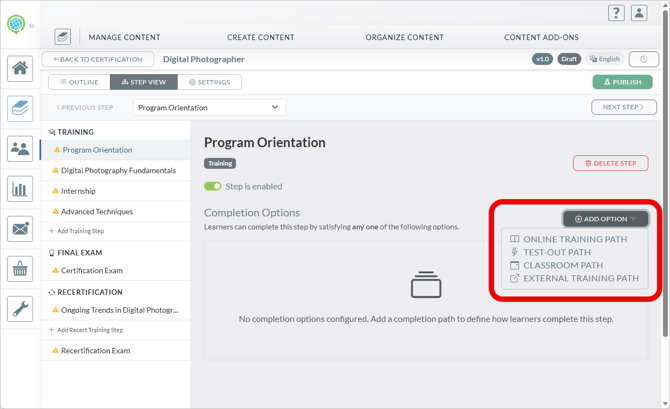
Now you are ready to enter the options for completing the steps. You will do this in Step View. To access Step View, click on Step View or click on a step name
In Step View you see outline of the steps on the left and information about the selected step on the right. Click on Add Option to add online training, classroom training, external training, or test out to the step.
Adding a Classroom Path
To add a Classroom Path:
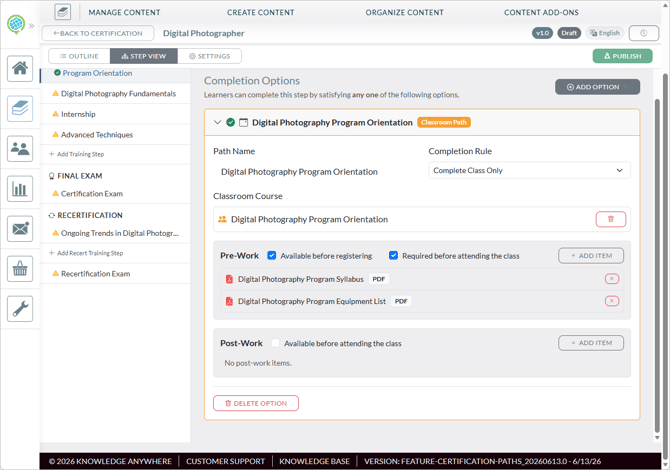
- Click Add Option and select Classroom Path.
- Enter the Path Name. This is the name learners and administrators will see.
- Click Select Classroom Course and select the classroom course that must be completed. This course must already exist in the LMS. You can type a portion of the course name to search for it.
- Specify pre- and post-work, if any, and specify these parameters:
- Check Available before registering if you would like learners to be able to preview the pre-work before registering for the Certification.
- Check Required before attending class if pre-work must be completed before class can be taken.
- Click Add item to select the pre- or post-work. You can select a course, learning path, or resource.
- Enter the Completion Rule. This controls how pre- or post-work affects completion criteria.
- Select Complete All if all pre-work, post-work, and assigned classroom courses must be completed in order to complete the Training Option.
- Select Complete Class Only if only the class must be competed in order to complete the Training Options (i.e., pre- and post-work are optional and do not affect completion).
- Select Complete Pre-work and Class if all pre-work and assigned classroom courses must be completed in order to complete the Training Option.
Adding an Online Learning Path
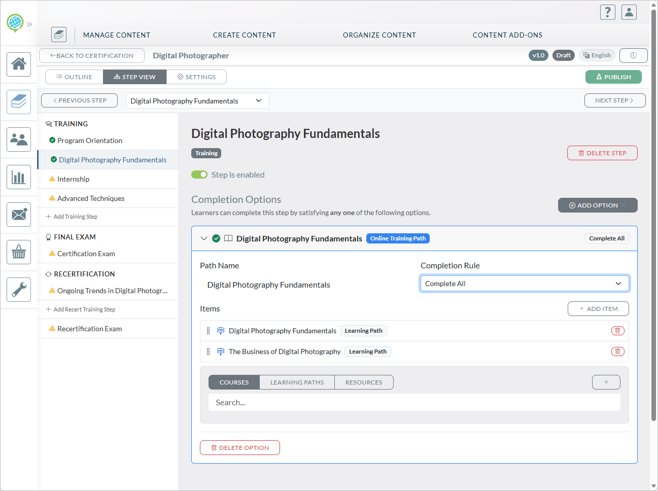
To add an online learning path:
- Click Add Option and select Online Learning Path.
- Enter the Path Name. This is the name learners and administrators will see.
- Select Add Item. You can add one or more courses, learning paths, or resources. These must already exist in the LMS.
- Select the Completion Rule:
- Complete All — The learner must complete every item.
- Complete Any — The learner must complete at least one item.
- Complete X of Y — The learner must complete a specified number of items.
- Complete All in Order — The learner must complete every item in the sequence listed.
Adding a Test-Out Path
When Test Out is enabled, learners who can demonstrate existing knowledge by passing a assessment can skip the training content and satisfy the step through the test-out alone.
To add a test-out path:
- Click Add Option and select Test-Out Path.
- Enter the Path Name. This is the name learners and administrators will see.
- Specify the assessment. You can select from an existing assessment or create a new assessment.
- If you selected new assessment, create the assessment. For more information, see Assessments Overview.
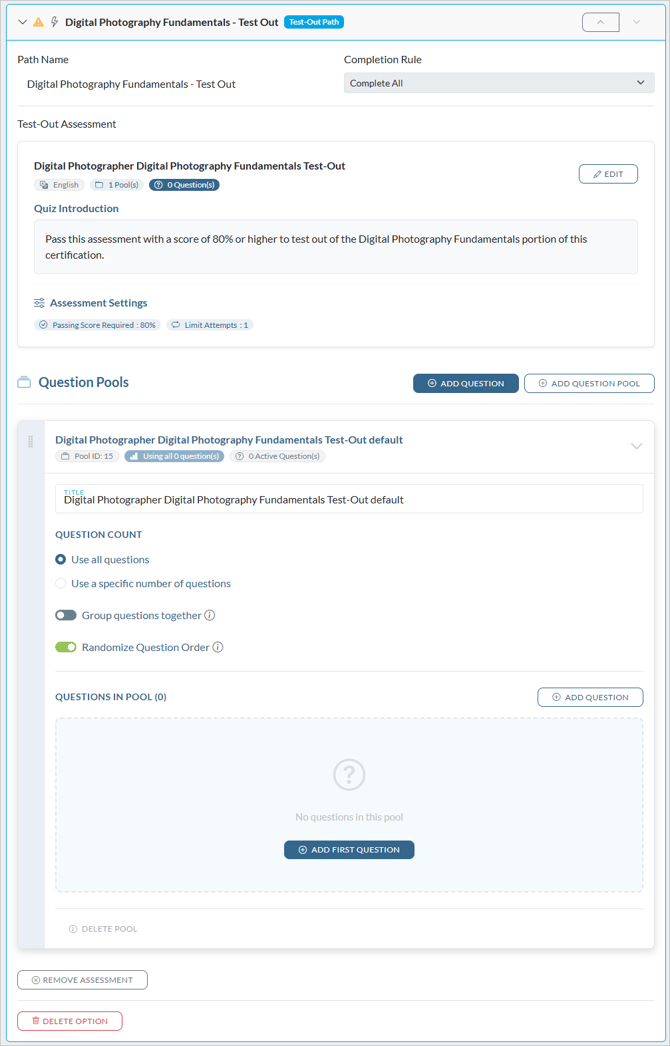
Note: If you select an assessment that is already in use elsewhere, be aware that changes to the assessment will affect all places it is used. If you need exam-specific settings or questions, use the copy option to create a dedicated version of the assessment.
Adding an External Completion Path
External completion paths are for activities completed outside of the LMS, such as courses not in the LMS, internships, certifications from other organizations, work assignments, and other activities. External Training paths can be set up to require administrator approval before the step is marked complete. When approval is required, the learner's submission enters an approval queue and the step is not credited until an administrator reviews and approves it.
To add an external completion path:
- Click Add Option and select Test-Out Path.
- Enter the Path Name. This is the name learners and administrators will see.
- Add instructions for the learner, describing the requirements for the external activity.
- Specify the Learner Evidence Requirements, meaning the ways the learner must document successful completion of the external activity.
- Document upload
- Digital signature
- Training date
- Training location
- Instructor name
- Specify whether an administrator must approve successful completion of the external activity.
4. Create the Certification Exam
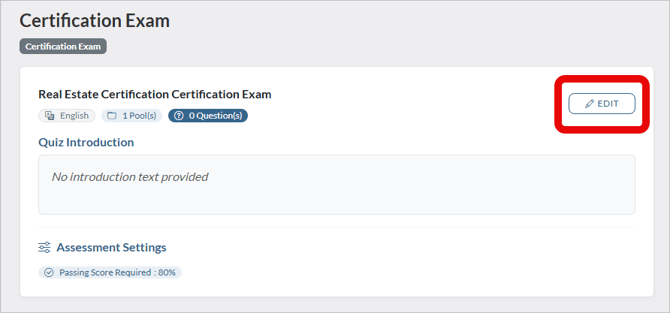
All Certifications must include a Certification Exam, which a learner must pass to attain the Certification. You can use an existing assessment or create a new assessment. For more information and creating an exam, see Assessments Overview.
Certification Exams include two features not available in other exams:
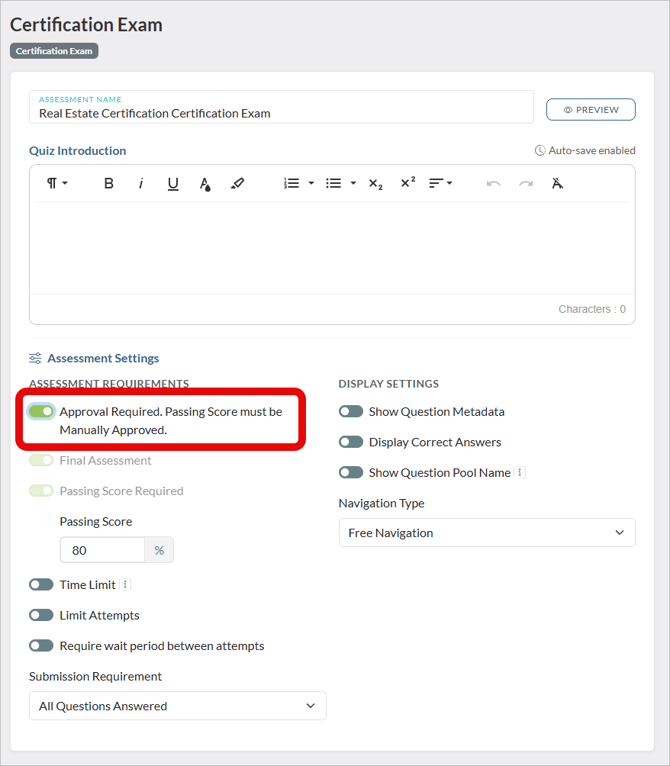
- The ability to require that an Administrator review a passing score before the Learner is granted successful completion for the exam.
- The ability for learner to request additional exam attempts.
Approving Passing Score
To activate Administrator approval:
- Click Edit to edit the Assessment Settings.
- Set Approval Required.
Request Additional Attempts
To activate additional attempt requests:
- Click Edit to edit the Assessment Settings.
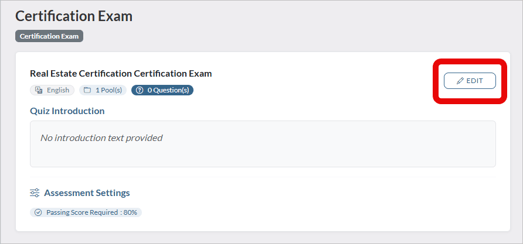
- Activate Additional Attempts.
- Enter the maximum number of attempts allowed.
- Under When Limit Reached, select the appropriate behavior when the learner reaches the maximum number of attempts and desires additional attepts
- Approval Required for Additional Attempts – The learner must request approval and an admin must grant it.
- Repurchase Required for Additional Attempts – The learner must repurchase the exam or certification.
- Both Approval and Repurchase Required for Additional Attempts
5. Specify Recertification Content
If you have enabled Recertification (See Creating a Certification, you can specify content for recertification in the same manner as you specified Certification content.
6. Verify Settings
The Settings view in the Version Builder contains version-level overrides that apply to this version, independent of the Certification-level configuration.
Certification Certificate
Select a different certificate template to use for this version, overriding the one set on the Certification. Useful if different versions of a certification use different certificate designs.
Recertification Certificate
Similarly, override the recertification certificate template for this version.
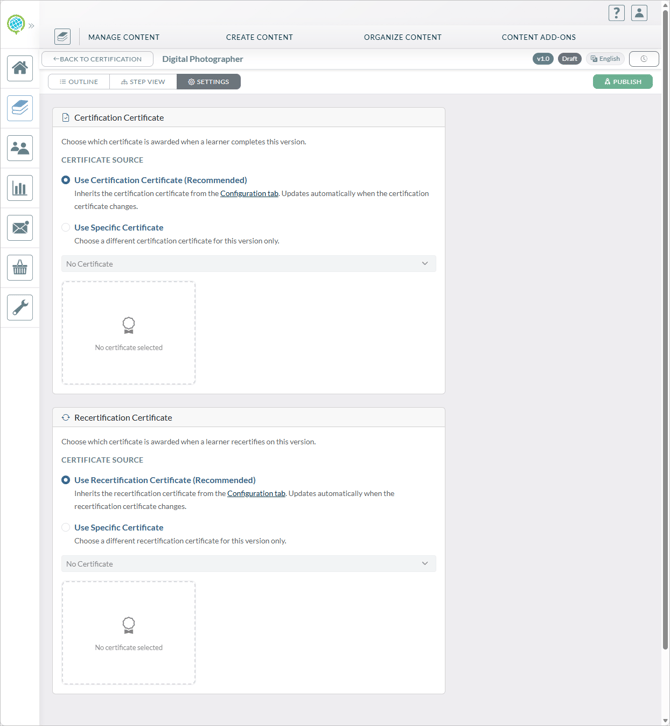
Other recertification parameters — cycle length, early start window, and grace period — are set on the Certification's Configuration tab and apply across all versions unless overridden here.
7. Publish the Recertification Version
When your version is complete and ready for learners, you can publish it. Click Publish.
Tip: We recommend that when you initially publish a version you assign it to selected testers to verify that the Certification is configured as you desire. Then the Certification can be assigned to learners.
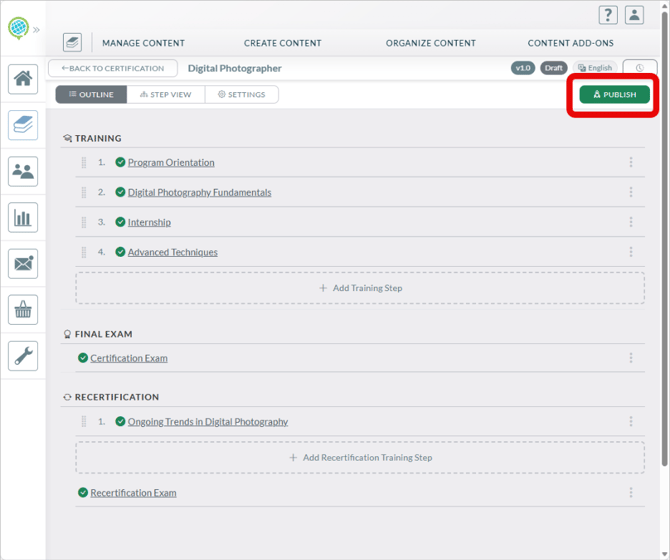
When you publish a version:
- The version state changes from Draft to Published.
- The previous Published version (if any) is automatically Archived.
- New learners assigned to or enrolling in the Certification will be placed on this version.
- Learners already in progress on an older version continue on that version until they complete or begin a new cycle.
Note: You cannot edit a Published version directly. To make changes after publishing, use the Copy option on the Content tab to copy the published version into a new draft. Make your edits to the draft and publish when ready.
Once a version is published, the Certification is ready to be assigned to learners. See Assigning Learners to a Certification for next steps.
Need Help?
If you have questions or run into issues, you can contact our support team at support@knoweldgeanywhere.com for technical assistance.