![2617210b577d672136104a4f5660e04f07acf843-removebg-preview.png]](https://help.knowledgeanywhere.com/hs-fs/hubfs/2617210b577d672136104a4f5660e04f07acf843-removebg-preview.png?height=40&name=2617210b577d672136104a4f5660e04f07acf843-removebg-preview.png)
Table of Contents
Before You Begin
Before assigning a Certification, ensure:
- The Certification has at least one published version. Learners cannot be assigned to a Certification with no published version.
- The Certification is set to Active on the Information tab.
Direct Assignment
Admins can directly assign learners to a Certification:
- Navigate to the Certification.
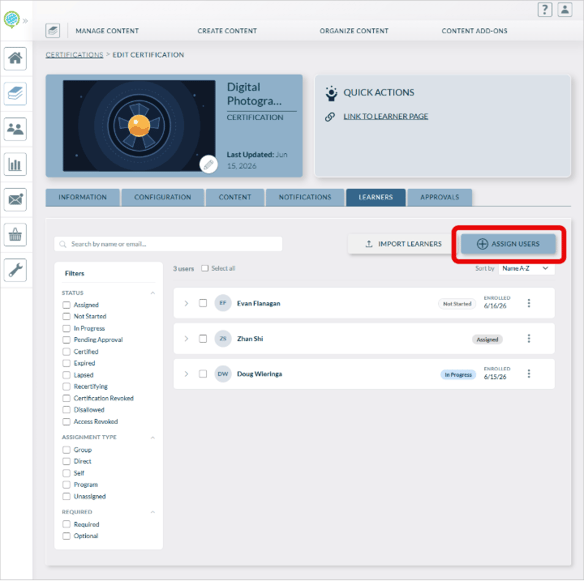
- Click on the Learners tab.
- Click Assign Users to search for and select learners. The selected learners are immediately assigned.
When a learner is assigned:
- An enrollment record is created for the learner.
- If the Certification does not require payment, the learner can begin immediately.
- If the Certification requires payment, the learner will be prompted to purchase before they can begin.
- If the Assignment notification is enabled, the learner receives an email notifying them of the assignment.
Direct Assignment via Spreadsheet Import
Administrators can also bulk register learners for the Certification via spreadsheet import:
- Create a spreadsheet to import.
- Spreadsheet must be in Excel format (xlsx).
- Spreadsheet should contain only one column with email addresses.
- Email must be unique.
- Learners must already exist in the system.
- First 100 entries will be imported.
- In the LMS, navigate to the Certification.
- Click on the Learners tab.
- Click Import Learners.
- Click Choose File and browse to the spreadsheet you created.
- Click Submit to upload the file.
Self-Enrollment
To configure a Certification for self-enrollment:
- Navigate to the Certification.
- Click on the Configuration tab.
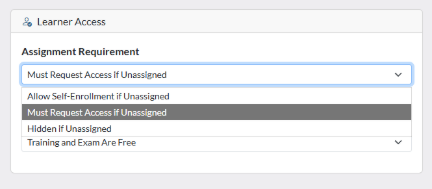
- Under Learner Access make the appropriate selection.
- Allow Self-Enrollment if Unassigned – Unassigned learners can enroll in the Certification without approval required.
- Must Request Access if Unassigned – Unassigned learners must request access and are assigned to the Certification once approved by an administrator. To set which administrators see these approval requests, see Managing Approvals for Certifications.
- Hidden If Unassigned – The Certification is not visible to unassigned learners, disabling self-enrollment.
Learner Experience
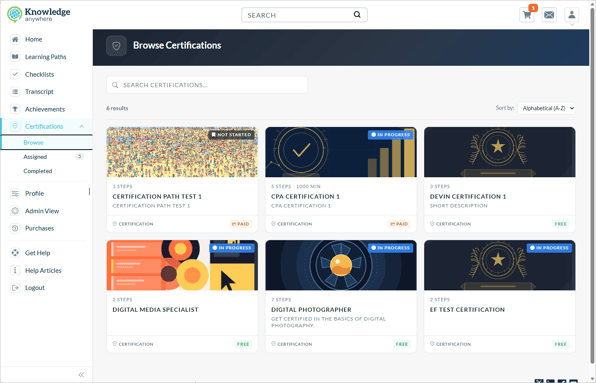
If the Certification is configured to allow self-enrollment, learners can find it by going to Certifications > Browse. The certification card shows their current status:
- Not Started - The learner has been assigned but has not begun. The card shows a Begin Training button.
- In Progress - The learner is working through the steps. The card shows a contextual button such as Continue Training or Take Exam.
- Pending Approval - All steps are complete and the certification is awaiting admin review. The card shows Awaiting Approval.
- Certified - The learner has earned the certification. The certificate is available for download.
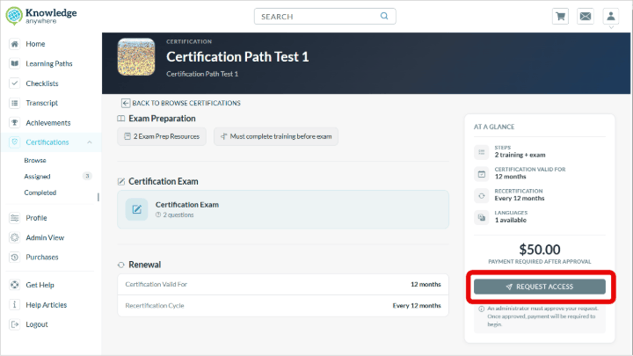
To enroll in a Certification, the learner clicks on the Certification tile. The next step depends on how the Certification is set up:
- If the Certification is configured Allow Self-Enrollment if Unassigned without e-commerce enabled, the learner can begin immediately.
- If the Certification is configured Allow Self-Enrollment if Unassigned with e-commerce enabled, the learner will be taken through the purchase flow before they can begin.
- If the Certification is configured Must Request Access if Unassigned, learners will see a Request Access button. The learner submits a request, which appears in the designated admin approval queue. The admin can approve or deny the request.
Need Help?
If you have questions or run into issues, you can contact our support team at support@knoweldgeanywhere.com for technical assistance.