![2617210b577d672136104a4f5660e04f07acf843-removebg-preview.png]](https://help.knowledgeanywhere.com/hs-fs/hubfs/2617210b577d672136104a4f5660e04f07acf843-removebg-preview.png?height=40&name=2617210b577d672136104a4f5660e04f07acf843-removebg-preview.png)
What Licenses Are For
Your LMS has two license families, and each unlocks something different:
- Studio unlocks authoring in Course Studio. Without a Studio license, an admin can view Studio content but can’t build or edit it.
- ✨Assistant AI for Studio unlocks AI course and assessment generation, wherever it appears; such as in Course Studio, or an assessment course's content tab.
The two are independent. Each has its own seat pool, and neither requires the other. An assessment author who never opens Studio can hold just an Assistant license; an author who builds in Studio and wants to use AI, needs both.
Studio License Types
- Studio Developer – Build and edit course content, work with page layouts, and manage templates. A Developer without a Studio license can still create standard, non-Studio courses; the license only gates Studio authoring specifically.
- Studio Editor – Everything in Studio Developer, plus reviewing and publishing courses, modifying course styling, and permanently deleting published content. An Editor has full keys to the kingdom, ideal for smaller creative teams.
Both Studio types draw from the same Studio seat pool, so choosing between them is about authority, not cost.
The Assistant License
✨Assistant AI for Studio is a single license with no tiers. Anyone who holds it can use every AI generation feature their tenant has switched on.
A few things worth knowing up front:
- Seats are a license check, not a budget. There are no credits, no balance, and no per-generation limit, so there’s nothing to run out of partway through a course. If your team was briefed on an earlier credit-based design, that model was replaced before release; holding a seat is all that’s required.
- Any admin type can hold an Assistant license. Unlike Studio, it isn’t restricted to Developers and Editors.
- No plan includes Assistant seats. Your Assistant seat count is set up individually for your account by our Customer Success team. If the Licenses screen shows “0 of 0 seats,” your account hasn’t been given seats yet. Nothing is misconfigured.
- Existing AI assessment users are not grandfathered. If your admins generated assessments with AI before the Assistant license existed, those options now require an Assistant seat. Building, editing, and managing assessments by hand is unaffected.
Tip: Viewing course content never requires a license, and Reviewers can review Studio content without one. Manual work outside AI generation, such as building assessments by hand, exporting, uploading scorm files never requires an Assistant license.
For more information on admin permissions and abilities in Course Studio, check out the Course Studio workflow.
License vs. Admin Type
A license and an Admin type are separate settings:
- Admin type determines what a person’s role can do across the LMS (Developer, Editor, Global Admin, etc.).
- A license adds specific capabilities on top of that role. It never replaces or reduces what the admin type already allows.
- Studio can only be granted to users with the Developer or Editor admin type.
- Assistant can be granted to any admin type.
Eligibility differs by family:
Note: Only a Global Admin can grant, switch, or remove licenses.
Where to Find License Information
Settings > Account Management > Licenses – Read-only view of each license family (Studio and Assistant), showing seats used out of seats available, who holds each license, and when it was granted. This screen also lists current list pricing for Studio, Assistant, and the Studio + Assistant bundle. To change your seat count for either family, contact Customer Success.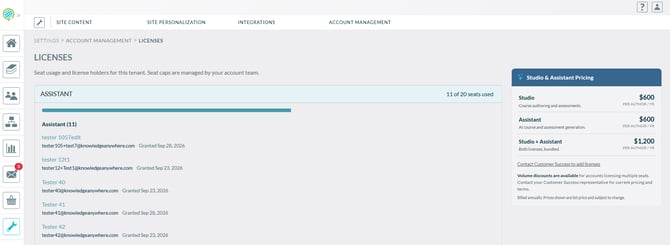
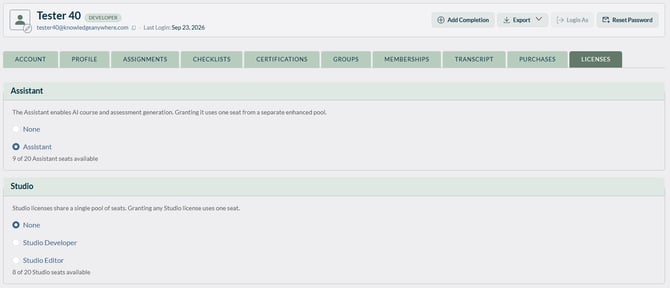
A user’s profile > Licenses tab – Where a license is granted, switched, or removed for that person. Studio and Assistant each have their own row.
What an Unlicensed Admin Sees
When an admin without an Assistant license opens a screen with AI features, the AI options are still visible but disabled. Clicking one opens a short message explaining what’s needed and the next step, which depends on your account:
- If your account has no Assistant seats yet, or all seats are in use, the message offers a way to email our Customer Success team at support@knowledgeanywhere.com.
- If a seat is free and the viewer can manage licenses, it links straight to the Licenses screen.
- If a seat is free but the viewer can’t manage licenses, it prompts them to ask their admin.
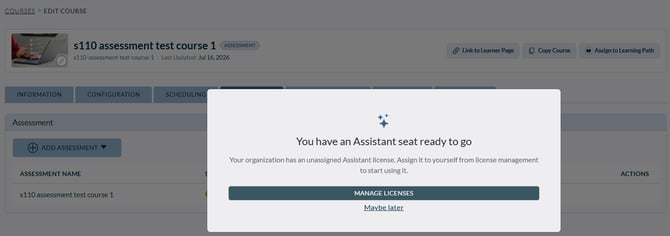 Here is an example of the second situation; a seat is free, and the user is a global admin
If AI features are turned off for your whole account, the AI options are hidden instead of disabled.
Scenario: Assigning and Managing a Studio License
Priya is a Global Admin. Sam, a new hire on the content team, has the Developer admin type, so he can view existing Studio courses but can’t create or edit anything. To build in Studio, he needs a Studio license too.
- Check seat availability – Priya goes to Settings > Account Management > Licenses. The Studio card shows “4 of 5 seats used,” so one is open.
- Grant the license – Priya opens Sam’s profile, goes to the Licenses tab, and selects Studio Developer in the Studio row. A “Saving…” indicator appears, then the updated seat count.
- Access unlocked – Sam logs out and back in. His previously greyed-out Studio tools — creating pages, editing content, working with templates — are now available.
- Later: switching license types – When Sam is promoted to take on review and publishing duties, Priya switches his license from Studio Developer to Studio Editor in his profile. Sam keeps his existing seat rather than using a second one, and the change takes effect the next time he logs in.
- When someone leaves – Priya sets Sam’s Studio row back to None. The seat returns to the pool immediately.