![2617210b577d672136104a4f5660e04f07acf843-removebg-preview.png]](https://help.knowledgeanywhere.com/hs-fs/hubfs/2617210b577d672136104a4f5660e04f07acf843-removebg-preview.png?height=40&name=2617210b577d672136104a4f5660e04f07acf843-removebg-preview.png)
Table of Contents
1. Create the Certification
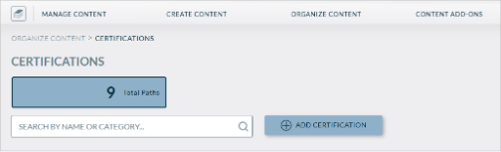
Navigate to the Certifications section of your admin panel and select the option to create a new Certification.
Complete the following fields:
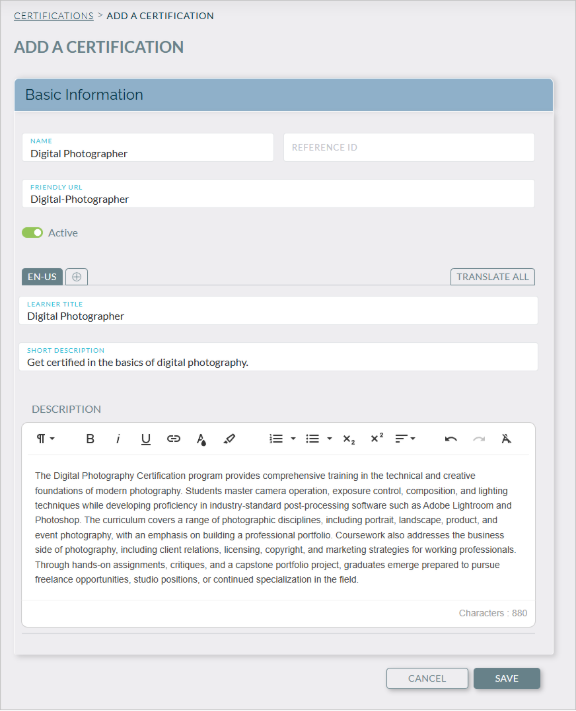
- Name - The internal admin name for the Certification. The Friendly URL is populated based on the name; you can change if desired. It must be unique.
- Learner Title and Short Description - The learner-facing name and description. These appear in the catalog and on the certification detail page. You can provide in multiple languages.
- Reference ID - An optional internal identifier for your records.
- Active / Inactive - Controls whether the Certification is visible to learners.
2. Enter Additional Information
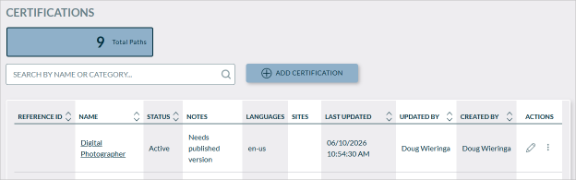
Now that you have initially created the Certification it will appear in the list of Certifications. Click on it to edit.
Add additional information on the Information tab.
- Content Metadata - Specify the metadata for the Certification. Metadata can help organizer your learning content and make the content more searchable. For more information on metadata, see Content Metadata Overview.
- Duration - Specify the estimated time to complete the Certification.
- Microsites - Specify the microsites where the Certification will be available. (Note that this behavior is different than courses, where Microsite assignment controls which microsite administrators have access to the course.)
Click Save and Next.
Tip: You can return to the Information tab at any time to update these fields. You do not need to have everything finalized before moving to the next steps.
3. Configure your Certification
On the Configuration tab, you can control several settings that dictate how your configuration will work.
Learner Access
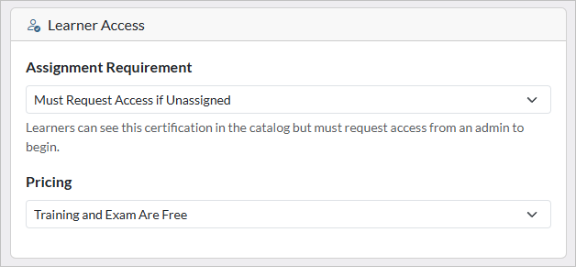
Administrators can assign learners to a Certification (see Assigning Learners to a Certification), but unassigned learners may still have access to the Certification. Under Assignment Requirement, you can control how this works.
- Allow Self-Enrollment if Unassigned – Unassigned learners can enroll in the Certification without approval required.
- Must Request Access if Unassigned – Unassigned learners must request access and are assigned to the Certification once approved by an administrator. To set which administrators see these approval requests, see Managing Approvals for Certifications.
- Hidden If Unassigned – The Certification is not visible to unassigned learners.
If the certification is visible to unassigned learners, they will see it under Certifications > Browse.
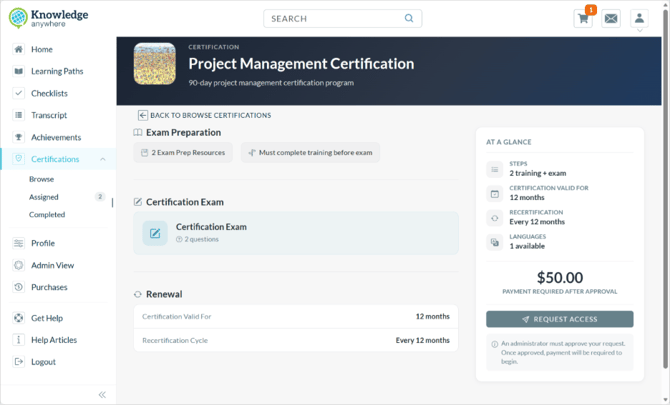
Under Pricing, you can select whether the training and exam are free, payment is required for the exam, or payment is required for both the training and the exam.
Prerequisites
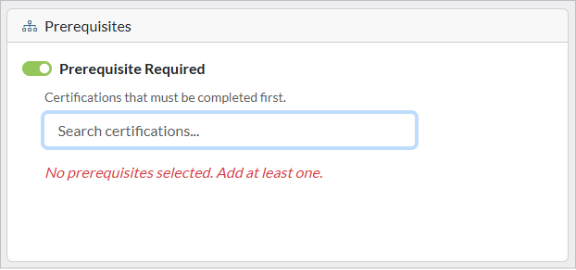
If learners must earn one or more other certifications before enrolling in this one, add them here. The learner will see a prerequisite blocker on the detail page until all prerequisites are met.
Certification
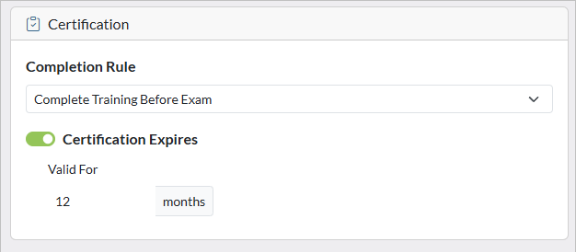
Under Completion Rule, select whether learners can complete training steps in any order, or must complete them in a specified sequence.
- Complete Training Before Exam – Learners must complete all training steps in the order specified before they can take the exam.
- Complete Training in Any Order Before Exam – Learners can complete the training steps in any order but must complete all steps before they can take the exam.
- Training Optional, Take at Any Time – Learners can take the exam at any point and are not required to complete any training steps beforehand. This is essentially a test-out option for the entire certification.
Under Certificate Expires, select the period of time, if any, before the Certification expires. Selecting an expiration period activates the Recertification options.
Certificate
Create or upload a certificate. For additional information, see How do I add and customize a certificate?.
When a Certification is granted, the current certificate is snapshotted with the user's certification record. If the certificate is revised subsequent to that, the learner's record will still include the certificate that was granted to them, not the revised certificate.
Recertification
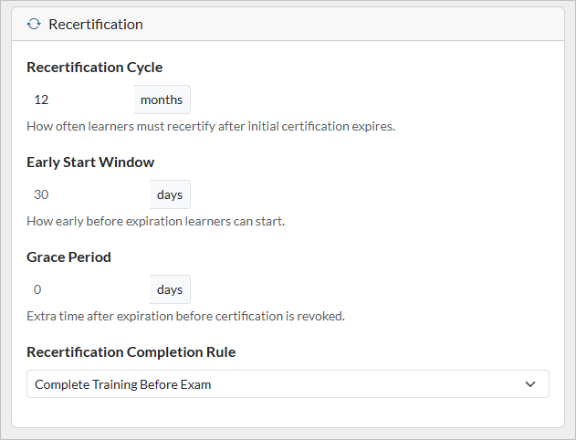
Recertification can be set up differently than the initial certification. On this screen you set up parameters governing how recertification works. For information on setting up the training steps for recertification, see Specifying Certification and Recertification Content.
The Recertification Cycle specifies how often learners must recertify after initial certification expires.
The Early Start Window specifies how soon before expiration learners can start. For example, a 12-month recertification cycle with a 1-month early start window means that learners can begin the recertification process 11 months after receiving their initial certification.
The Grace Period specifies the time the certification remains valid after expiration before being revoked. For example, a 12-month recertification cycle with a 1-month grace period means that the certificate is revoked 13 months after initial certification if the learner does not successfully recertify.
Under Recertification Completion Rule, select whether learners can complete training steps in any order, or must complete them in a specified sequence.
- Complete Training Before Exam – Learners must complete all training steps in the order specified before they can take the exam.
- Complete Training in Any Order Before Exam – Learners can complete the training steps in any order but must complete all steps before they can take the exam.
- Training Optional, Take at Any Time – Learners can take the exam at any point and are not required to complete any training steps beforehand. This is essentially a test-out option for the entire certification.
Recertification Access
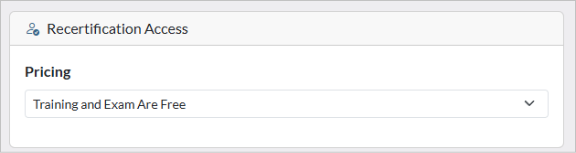
Under Pricing, you can select whether the recertification training and exam are free, payment is required for the exam, or payment is required for both the training and the exam.
Recertification Certificate
Create or upload a certificate. For additional information, see How do I add and customize a certificate?.
Need Help?
If you have questions or run into issues, you can contact our support team at support@knoweldgeanywhere.com for technical assistance.