![2617210b577d672136104a4f5660e04f07acf843-removebg-preview.png]](https://help.knowledgeanywhere.com/hs-fs/hubfs/2617210b577d672136104a4f5660e04f07acf843-removebg-preview.png?height=40&name=2617210b577d672136104a4f5660e04f07acf843-removebg-preview.png)
What Is Content Metadata?
Content Metadata is a labeling system that lets you tag and categorize content throughout your LMS like courses, learning paths, resources, certifications, and quiz questions. Think of it like adding keywords to a library catalog: the labels make content easier to find, filter, and report on.
Metadata is organized in two levels. A Metadata Type is the category; for example, "Skills," "Roles," or "Department."
A Metadata Item is an individual value within that category. For example, under "Roles" you might have "Manager," "New Hire," or "Individual Contributor." Once your types and items are set up, you apply them to content throughout the platform.
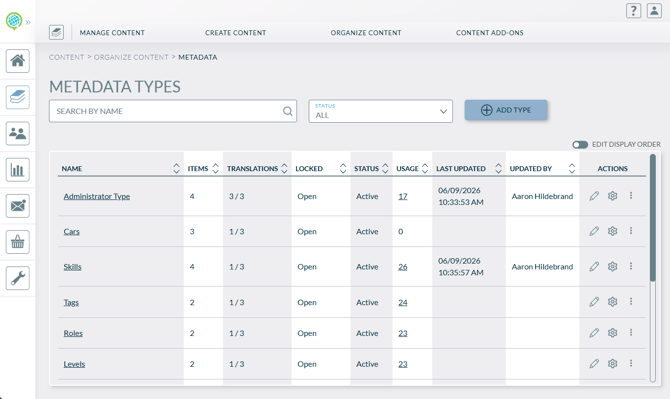
The LMS comes with four built-in types ready to use:
- Tags - General-purpose labels that appear on learner-facing course detail pages. Tags are the most visible metadata type to learners by default.
- Roles - Job roles or personas the content is relevant to, such as "Sales Rep" or "Team Lead."
- Skills - Competencies or skill areas the content addresses, such as "Communication" or "Product Knowledge."
- Levels - Difficulty or experience level, such as Beginner, Intermediate, or Advanced.
You can also create custom types beyond these four. For example, a "Department" type or a "Topic" type to fit your organization's needs. Each type can be configured to apply only to the kinds of content where it's relevant, so your custom course fields won't clutter the resource edit form, and vice versa.
Note: Custom Course Fields are not a part of Content Metadata, and will continued to be managed in the LMS settings.
When Should I Use Content Metadata?
Content Metadata is most useful when you have a growing library of content and want to make it easier to organize, search, and report on. Here are some common use cases:
- Skill-based reporting - Tag courses and quiz questions with Skills metadata, then pull reports to see which competencies are most frequently tested or where learners are underperforming.
- Audience targeting - Apply Roles metadata so learners can find content relevant to their position, especially when your catalog is large.
- Catalog filtering - Use Levels or custom metadata types to let learners filter content by difficulty, department, or topic when browsing the catalog.
- Certification categorization - Add metadata to certification paths so learners can browse and filter certifications in the catalog by type or subject area.
- Quiz question tagging - Tag individual quiz questions by skill or topic area to support detailed post-assessment analytics, such as identifying which topic areas a learner struggled with most.
What Are the Steps for Setting Up Content Metadata?
Navigate to Content > Organize Content > Metadata to access the Metadata admin page.
- Create your Metadata Types. Decide what categories of labels make sense for your organization, such as Department, Topic, or Audience. Then create a type for each. When creating a type, you'll choose which kinds of content it applies to, whether it should be searchable by learners, and how it displays across the Knowledge Anywhere LMS.
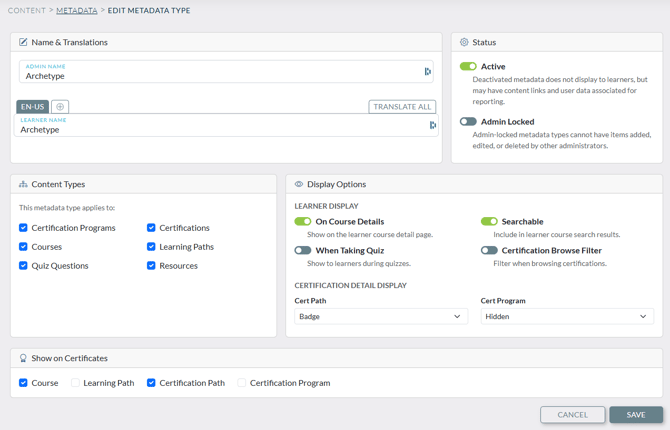
- Add Metadata Items. Once your types are created, open each one and add the individual label values. Item names must be unique within a type.
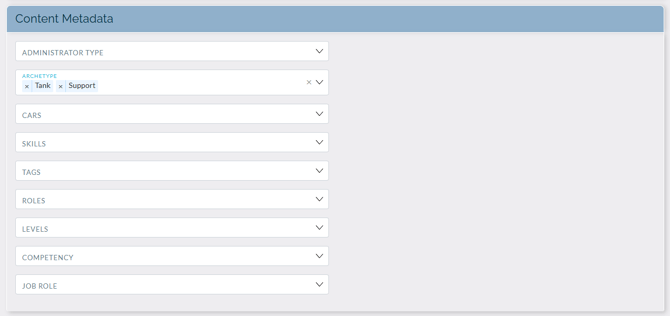
- Apply metadata to your content. Open any course, learning path, resource, certification, or quiz question and look for the Metadata section. You'll see a dropdown for each active type that applies to that content, and select the items that fit. Multiple items can be selected within a single type.
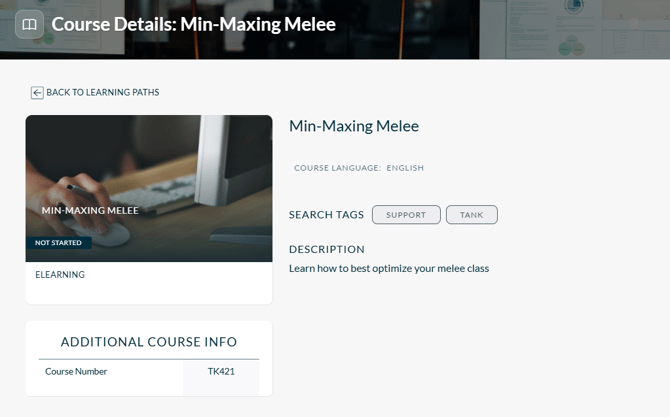
- Configure display settings. Each metadata type independently controls where it appears to learners - on course detail pages, during quizzes, on certification cards, in catalog filters, and on completion certificates. Adjust these to decide which labels are visible to learners and which are kept for internal organization only.
How Does Metadata Work for Quiz Questions?
Metadata can be applied to individual quiz questions in addition to courses and other content. This is particularly useful when you want to analyze learner performance by skill area or topic after an assessment. For example, identifying that a learner answered all "Compliance" questions correctly but struggled with "Product Knowledge" questions.
If you want learners to see metadata while taking a quiz, for example, to show which skill a question is testing. Two settings must both be enabled: the Display During Quiz flag on the metadata type itself, and the Show Question Metadata toggle on the individual course's assessment settings. Both must be on for metadata to appear during a quiz attempt.
When a learner begins a quiz, the LMS captures a snapshot of the metadata assigned to each question at that moment. This means that if you later rename or change metadata, it won't alter the record of past attempts. The historical data stays intact.
For more on assessment settings, check out the Assessments Overview.
Managing Metadata Over Time
As your content library grows, you may need to retire or restructure your metadata. When removing a type or item that is currently applied to content, the LMS will prompt you to choose between two options:
- Deactivate - Hides the type or item from selection menus going forward but preserves any existing content that was already tagged with it. Use this when you want to retire a label without losing historical data.
- Delete - Permanently removes the type or item and strips it from all content it was applied to. This cannot be undone.
You can also lock a metadata type to prevent other admins from adding, editing, or deleting items within it, which is useful for types where consistency matters, such as a standardized Skills taxonomy. This does not prevent the type itself from being edited, only the items within it.
The four default types (Tags, Roles, Skills, Levels) are system-managed and cannot be deleted or renamed regardless of lock settings, though you can freely manage the items within them.
The display order of metadata types in menus and on learner-facing pages can be adjusted by dragging and dropping types on the Metadata admin page. Changes take effect immediately across the platform.
Permissions
By default, the Modify permission is granted to Global Admins, Editors, Developers, and Microsite Admins. Reviewers and Quiz Editors receive view-only access, meaning they can see metadata applied to content but cannot make changes to types or items.
Need Help?
If you have questions or run into issues, you can contact our support team at support@knoweldgeanywhere.com for technical assistance.