![2617210b577d672136104a4f5660e04f07acf843-removebg-preview.png]](https://help.knowledgeanywhere.com/hs-fs/hubfs/2617210b577d672136104a4f5660e04f07acf843-removebg-preview.png?height=40&name=2617210b577d672136104a4f5660e04f07acf843-removebg-preview.png)
Interactive blocks are added to a page the same way as a text or image element. Some blocks let learners explore content (flip a card, open a hotspot, switch tabs). Others are exercises.
To add interactive blocks, a user must have Developer or Editor administration rights and a Studio license. For details, see the discussion of administrative rights in Course Studio - Workflow. For the basics of building pages, see Course Studio - Building Your First Course.
Types of Interactive Blocks
|
Tile |
What the learner does |
|---|---|
|
Self-Check |
Reads a prompt, then opens it to reveal the answer |
|
Flip Card |
Turns cards over to see the back |
|
Hotspot |
Opens markers on a picture to read notes |
|
Tabs |
Switches between tabs, or walks through numbered steps in order when set to Steps |
|
Compare |
Toggles between two versions (A/B) |
|
Accordion |
Opens and closes sections |
|
Sequence |
Puts shuffled steps in the right order |
|
Spot Issues |
Finds the problems in a picture; some areas are decoys |
|
Sort |
Sorts items into the right bins. Can be retried until the learner gets them right. |
|
Match |
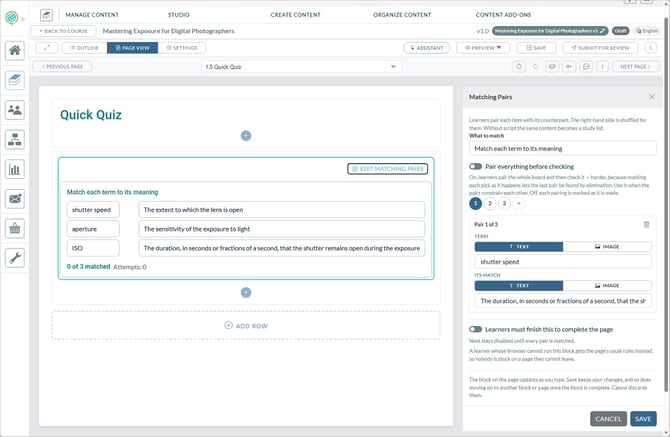
Matches each item with its pai. Can be retried until the learner gets them right. |
|
Rapid Fire |
Answers a round of multiple-choice questions, timed or untimed. Can be retried until the learner gets them right. |
Adding an Interactive Block
An interactive block is page element, like a heading, text box, or picture. It can be the only block on the page or one several blocks on the page. Create your page layout first; see Course Studio - Building Your First Course. Then you can add an interactive block.
To add an interactive block to a page:
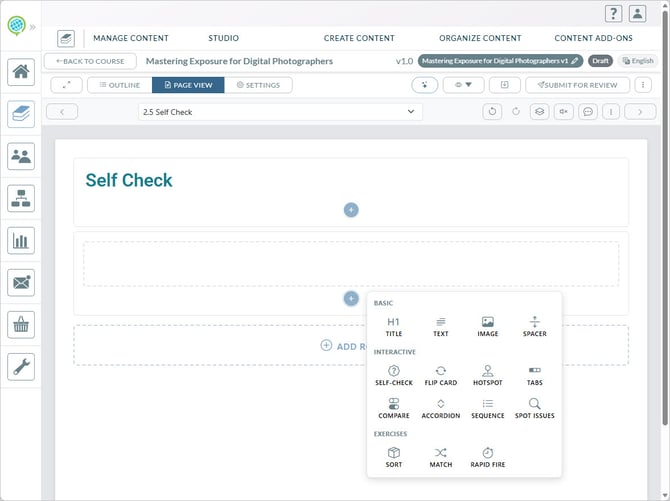
- Click Insert Element (+) where you want the block.
- Select a tile from the Interactive or Exercises group.
- You will see the dialog box to specify the details of the interaction. Complete the dialog box.
- Click Save.
The dialog boxes vary based on the interaction. Here are some things to be aware of:
-
Most blocks can show a picture in place of text, such as a card face, one side of a Compare block, a sort item, a matching tile, a sequence step, or a rapid-fire option.
-
You can also insert a picture inside a block's text, such as a tab, an accordion section, a self-check answer, a hotspot note, or a sequence step's detail. Use the editor's insert-image button, which picks from the Resource Library or stock photos. Pictures pasted or dragged into the text, or uploaded one-off, aren't supported. To use a new image, add it to the Resource Library first. Only pictures from the Resource Library or stock photos can be used in blocks.
-
You can require learners to finish a block before the page counts as complete. Until they do, the page's Next button stays disabled and a message tells the learner why. The setting is off by default and is set per block. For exercises, finishing means getting every answer right. There is no pass mark or percentage to set.
-
Each Rapid Fire question shows the right answer plus up to three wrong options, so a full round shows four choices. Tip: Write three wrong options for every question. If you leave some out, Studio borrows answers from the round's other questions.
-
A Tabs block can present a process that learners walk through in order, define terms, or just subdivide content. Learners see numbered boxes joined by arrows. Each step unlocks the next one once it's opened, and steps already reached can be reopened at any time.
-
A Sequence block is always an exercise: learners see the steps shuffled and put them in order. Enter the steps in the correct order; that's the answer. A sequence needs at least two steps. If you only want a numbered list, use a Text element instead. After learners check their order, they're told whether it's right, not which steps are wrong. They can ask to see the correct order or start over.