![2617210b577d672136104a4f5660e04f07acf843-removebg-preview.png]](https://help.knowledgeanywhere.com/hs-fs/hubfs/2617210b577d672136104a4f5660e04f07acf843-removebg-preview.png?height=40&name=2617210b577d672136104a4f5660e04f07acf843-removebg-preview.png)
Table of Contents
1. Overview
3. Importing Your Storyline Course
4. How Your Course Is Converted
Administrative Rights
To import from Storyline, a user must have Developer or Editor administration rights and a Studio license assigned to them. For details, see the discussion of administrative rights in Course Studio - Workflow.
Storyline import does not require a Studio Assistant AI license. However, if you have a license, Studio Assistant’s AI features can help you revise the imported course.
1. Overview
If your organization has existing Articulate Storyline courses, you can bring their text and structure into Course Studio rather than retyping them. Storyline import reads a Word export of your course and builds a Studio outline from it — each scene becomes a section, and each slide becomes a page.
This is a text import. It recovers your writing and your course structure, not your visuals or your interactions. Images, animations, triggers, and quiz logic do not come across. Expect to rebuild the visuals in Studio.
2. Before You Import
In Articulate Storyline, use Export to Word — the translation export. This produces a .docx file containing all the text in your course.
This is not your published course and not your .story file. Exporting your course for the web, or simply saving the .story file, will not work. Only the Export to Word translation document can be imported.
- The file must be a .docx. Older .doc files cannot be read.
- Maximum file size is 100 MB.
- The export must come from a current version of Storyline. Older versions produce a different export structure that cannot be read; if the import reports this, re-export from an up-to-date version of Storyline.
3. Importing Your Storyline Course
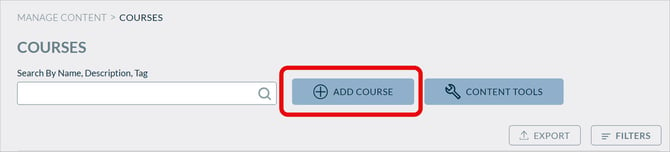
- Go to Courses and click Add a Course.
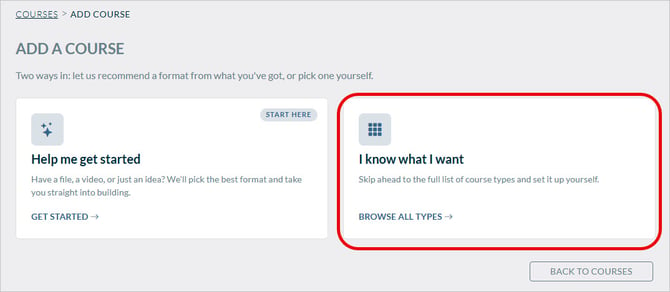
- Because you know you want to import from Storyline, click I know what I want.
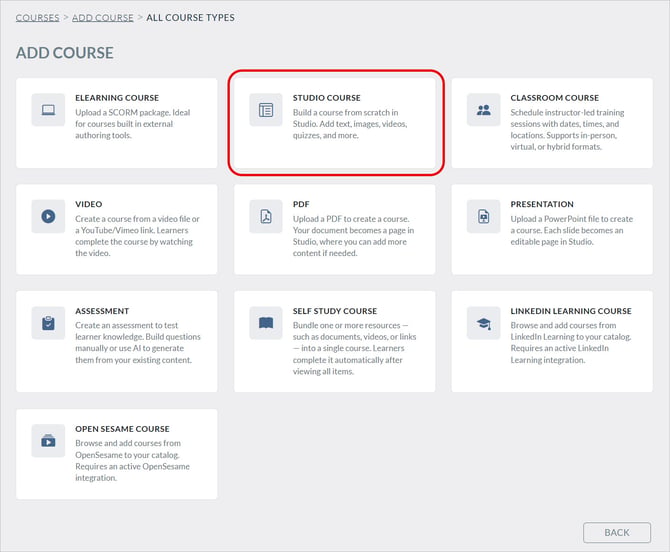
- Click Studio Course.
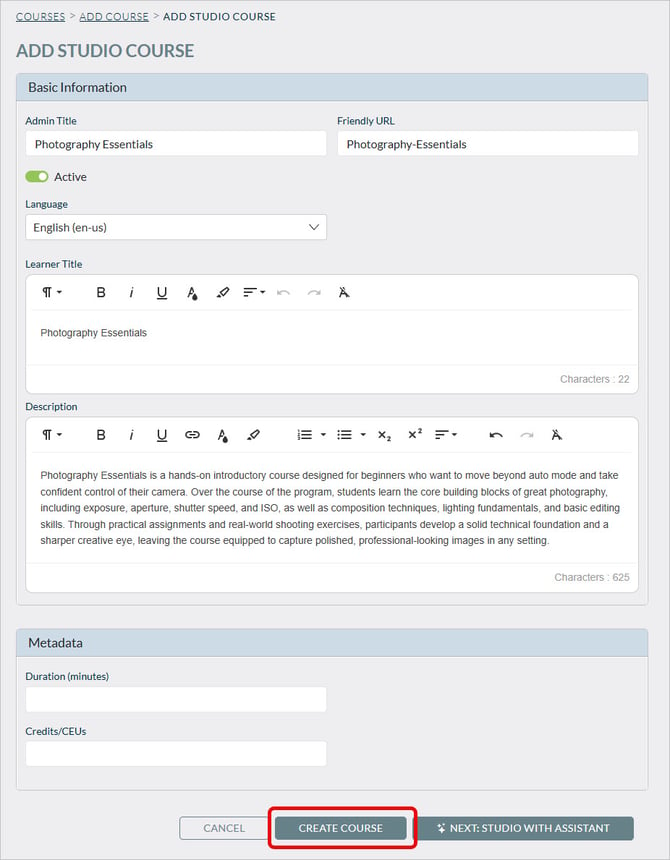
- Enter the foundational details about your course, including:
- Course Title(s) - The name Learners will see in the catalog and on their dashboard. The Admin Title, Friendly URL, and Learner Title will all default to whatever is entered in the Admin Title, and can be different
- Description - A summary of what the course covers. This appears on the course detail page and helps Learners understand what to expect.
- Tags - Keywords that improve searchability within the platform.
- Duration - In minutes, how long the course is.
- You will need to enter a course title, at a minimum, before you can proceed. You can always come back and update this information later, so do not feel the need to have everything finalized before moving forward.
- Click Create Course.
- Click Import Storyline and import the file you exported from Storyline.
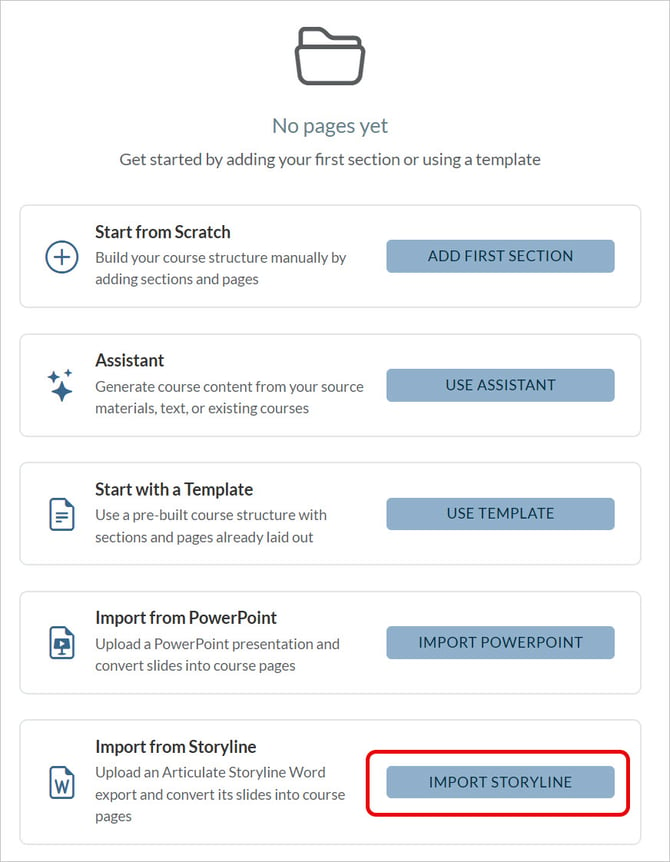
- Drag your Word export into the upload area or click to browse for it.
- Click Import. You will see Reading document and creating pages… while the file is processed.
- When you see Import Complete, review any messages listed in the modal, then click Done.
You will see the outline of your imported course. You can now edit the course in Studio as you would edit any other Studio course.
4. How Your Course Is Converted
- Scenes become sections and slides become pages.
- Storyline layers are merged.
- Studio identifies headings within a page where it can, but the Word export does not record how your slides were laid out, so only clearly-marked headings are recognized. Most pages arrive as plain paragraphs.
- The narration transcript that appears in the Slide Notes section of the exported Word document appears at the bottom of the instructional slide.
- Images and media are not imported.
- Animations, triggers, and interactions are not imported
- Quiz slides are imported as ordinary content pages. Storyline's Word export does not record which answer is correct, so quizzes must be rebuilt as Studio assessments — but you can copy the question and answer text from the imported page rather than retyping it.
- Player navigation and menus are not imported. Studio navigation and menus are used instead.
- The Studio course is built in the original language only.