![2617210b577d672136104a4f5660e04f07acf843-removebg-preview.png]](https://help.knowledgeanywhere.com/hs-fs/hubfs/2617210b577d672136104a4f5660e04f07acf843-removebg-preview.png?height=40&name=2617210b577d672136104a4f5660e04f07acf843-removebg-preview.png)
Every question you create is stored in the Question Bank, whether it was generated by ✨Assistant AI, written by hand inside an assessment, or added directly in the bank. Assessments draw their questions from the bank, so a question written once can be reused in as many assessments as you need. Questions from assessments contained within SCORM courses are not included in the Question Bank.
The article Assessments Overview explains how to create an assessment in the LMS. This article focusses on working with the Question Bank.
From the Question Bank you can:
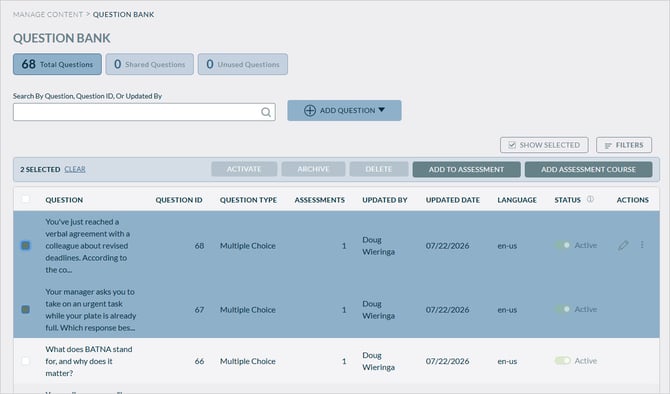
- See at a glance how many questions you have, how many are shared, and how many aren't used anywhere.
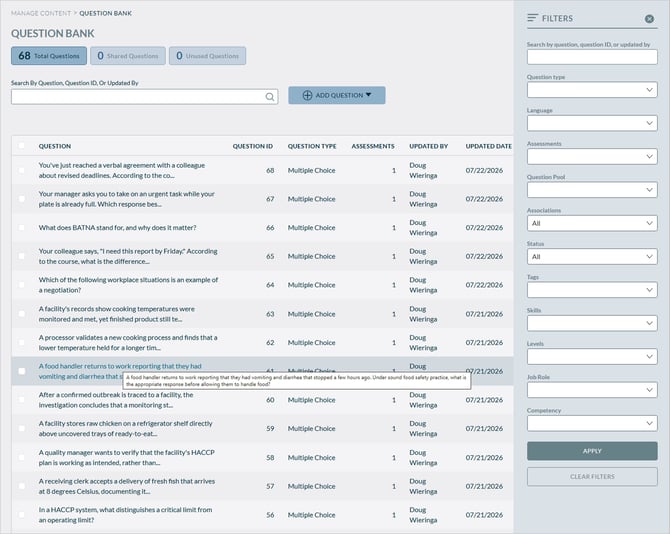
- Search and filter questions by title, author, type, language, assessment, or question pool.
- Activate, archive, or delete questions in bulk.
- Add questions to an existing assessment, or create a new assessment course from them.
What you can do depends on your administrator permissions:
|
Task |
Permission needed |
|
Open the Question Bank and edit, activate, archive, or delete questions |
Modify questions |
|
Add questions to an assessment |
Modify assessments (quizzes) |
|
Create an assessment course from questions |
Modify courses |
For which administrator types have these permissions, see LMS Admin Roles Overview.
Contents
1. Opening the Question Bank
To open the Question Bank:
- Go to Content > Manage Content > Question Bank.
Questions in the Question Bank are listed. Each row shows:
- Question - Click to open and edit the question.
- Question ID - A unique identifier for the question.
- Question type
- Assessments. The number of assessments that use the question. Click the number to see which assessments they are.
- Updated By
- Updated Date
- Language
- Status. An active/archived toggle. See Manage Questions in Bulk for when a question can be archived.
- Actions - Click the three dots to edit or copy a question.
The Question Bank makes it easy to find specific questions quickly. Use the text search to look up questions by title or by the name of the person who last updated them, then narrow the results with filters for question type, language, assessment, or assessment pool.
2. Editing a Question
If you edit a question in the Question Bank, your edits appear in every assessment where that question is used.
To edit a question:
- Roll over the question and click the pencil icon.
- Make your edits. You will see a list of all assessments that use that question.
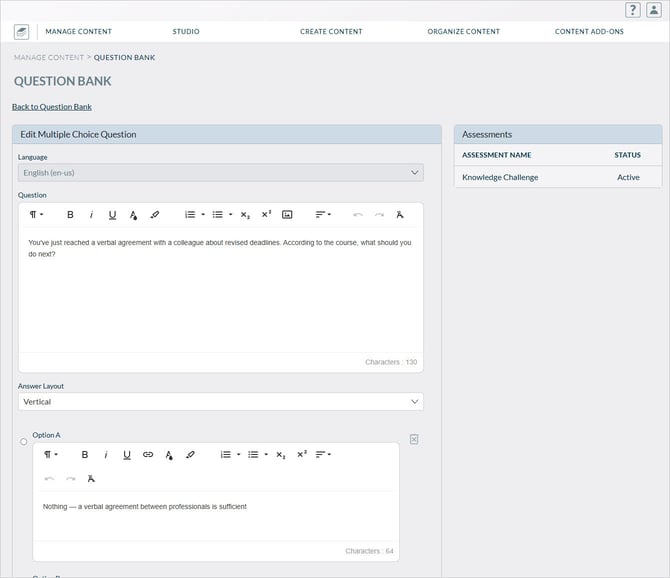
- Click Save.
3. Managing Questions
Select several questions to act on all of them at once. Some actions are only available when every selected question meets the condition below.
|
Action |
What it does |
Available when |
|
Activate |
Returns archived questions to active use |
The selected questions are archived |
|
Archive |
Retires questions you no longer need, without deleting them |
The selected questions are active and not used in any assessment |
|
Delete |
Permanently removes questions |
No learner has ever submitted results for the selected questions |
|
Add to Assessment |
Adds the questions to an existing assessment. You will be prompted to select the assessment. |
At least one question is selected |
|
Add Assessment Course |
Creates a new assessment course from the questions |
At least one question is selected |
To apply a bulk action:
- Select the check box to the left of each question you want.
- Click the action.
- For Archive and Delete, confirm the action when prompted.
Note: Deleting can't be undone. To take a question out of use but keep it, archive it instead.