![2617210b577d672136104a4f5660e04f07acf843-removebg-preview.png]](https://help.knowledgeanywhere.com/hs-fs/hubfs/2617210b577d672136104a4f5660e04f07acf843-removebg-preview.png?height=40&name=2617210b577d672136104a4f5660e04f07acf843-removebg-preview.png)
Every time you create an assessment by uploading a document or pasting in text using AI, or building questions manually, those questions are all stored in the Question Bank: a single searchable database that holds every question across your entire Knowledge Anywhere LMS platform. Individual assessments pull from it, but the Question Bank gives administrators a bird’s-eye view of everything that’s been written, so nothing has to be recreated from scratch.
Key Capabilities
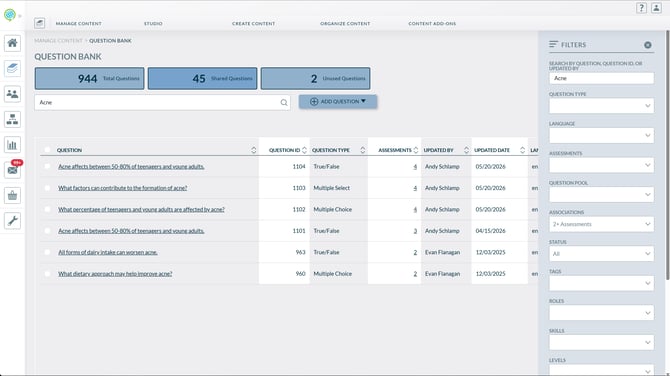
- Search and Filter - Look up questions by title or by who last updated them, and narrow results by question type, language, or the assessments they belong to.
- Reuse Across Assessments - Pull a question that already exists into a new assessment instead of writing it again.
- At-a-Glance Stats - Quick counts show your total questions, how many are shared across multiple assessments, what assessments they're assigned to, and how many aren’t in use anywhere yet.
- Bulk Management & Assignment- Update the status of several questions, remove outdated ones, or add a batch to an assessment, all without opening each one individually.
Finding the Question Bank
The Question Bank lives within the administrative side of your site, alongside your other content and assessment tools. It can be accessed in the header dropdown in the content section of the Admin side of the LMS.
Searching and Filtering
The Question Bank makes it easy to find specific questions quickly. Use the text search to look up questions by title or by the name of the person who last updated them, then narrow the results with filters for question type, language, assessment, or assessment pool.
Managing Questions in Bulk
Select multiple questions to apply an action to all of them at once:
- Activate — Bring archived questions back into active use.
- Archive — Retire active questions that aren’t currently used in any assessment.
- Delete — Permanently remove questions
- Add to Assessment — Attach selected questions to an pre-existing assessment directly from the bank.
- Questions are able to be assigned to specific pools within the selected Assessment
- Add Assessment Course — Build a brand-new course from the selected questions.
Assigning Questions in Bulk
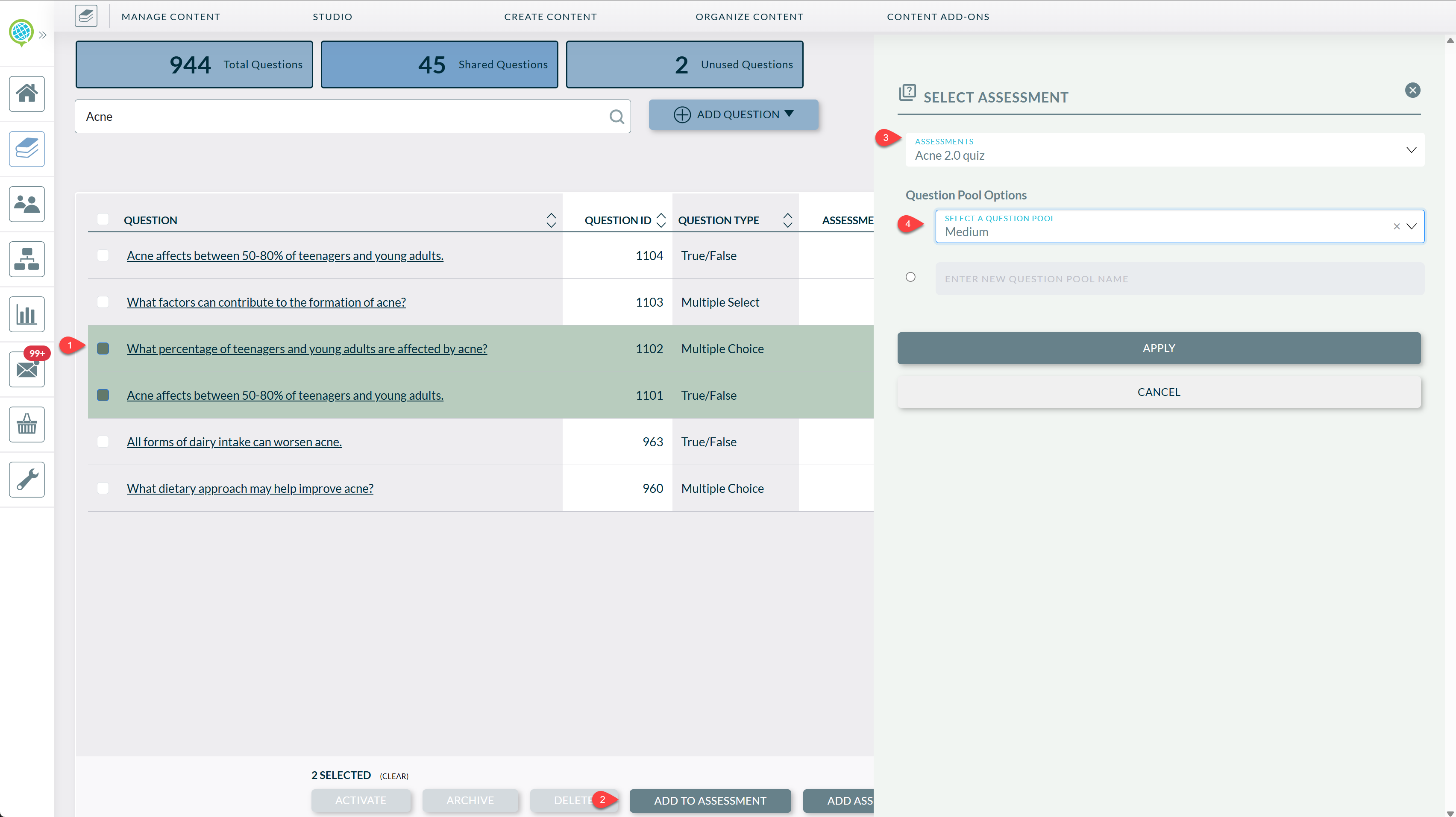
Assign questions to Assessments seamlessly. No need to completely create new questions from scratch. Follow the steps in the image below
-
Select your question(s) by clicking the box to the left of the question title
-
Select either:
-
Add to Assessment - This will add the questions to an EXISTING Assessment
-
Add Assessment Course - Create a completely new Assessment course type
-
-
Add To Assessment is used in the image, which will open up a side pane where you'll select the assessment.
-
Select the Question Pool, or, create a new Question Pool
Note: Some actions depend on a question’s current status. Activate only appears for archived questions, and Archive only applies to active, unused ones. Deletion is only available if no learner has ever submitted results for them.