![2617210b577d672136104a4f5660e04f07acf843-removebg-preview.png]](https://help.knowledgeanywhere.com/hs-fs/hubfs/2617210b577d672136104a4f5660e04f07acf843-removebg-preview.png?height=40&name=2617210b577d672136104a4f5660e04f07acf843-removebg-preview.png)
Learner profile fields can be designated as Personal Identifiable information (PII) and then administrators can be granted rights to view information designated as PII.
-
By default, First Name, Last Name, E-mail, and phone number are considered PII.
-
Custom learner profile fields can be individually designated as PII.
For fields designated as PII:
-
Admins with PII visibility see the actual value and can edit it (subject to their role permissions).
-
Admins without PII visibility see the value obfuscated everywhere and the field is read-only, even if their role would otherwise allow editing.

- PII settings affect visibility in these areas:
- Reports: all reports, including running, filtering, and downloading.
- User Profile: viewing/fetching profile (incl. custom fields) and updating users (custom fields, state, country, domain).
- Groups: fetching/viewing group custom fields.
- Reg Codes: any views/flows that surface custom fields.
Granting Visibility to PII
To make PII visible to an administrator:
- Go to Learners and click on the Administrator to whom you wish to grant visibility.
- On the Account tab, click PII enabled.
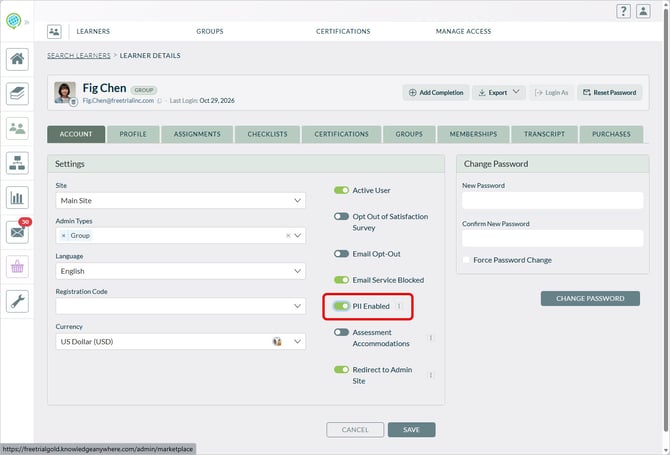
- Click Save.
The PII Enabled field also appears on a learner's profile. Enabling PII makes no difference to a learner, as you must be an admin to have visibility to PII. If a learner is ever given administration rights, then their PII Enabled status will take effect.
Designating a Custom Profile field as PII
Custom learner profile fields can be designated as PII. You must be a Global Admin to designate information as PII. Once a custom learner profile field is designated PII, its visibility to administrators is controlled by the PII Enabled setting described abive.
To designate a learner custom profile field as PII:
- Go to Settings > Site Personalization > Custom Profile Fields.
- Select the custom field you wish to designate as PII.
- Select Personal Identifiable information.
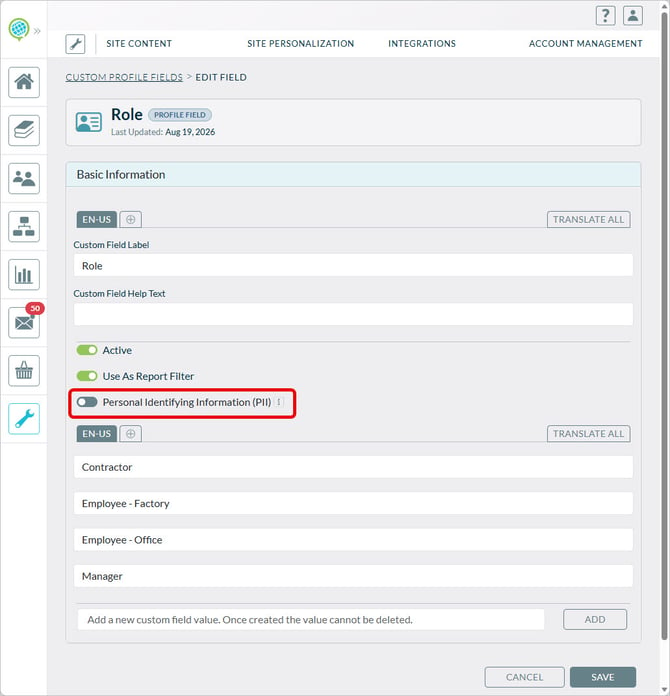
- Click Save.
Hiding PII in Reports
When you run a report as an administrator, the visibility of the PII in that report is governed by your visibility settings. However, if PII is visible to you, you can still hide it in the report (perhaps because you want to share the report with someone who should not see it).
To hide PII in a report:
- Go to the Report Details screen.
- Click Schedule Report.
- Select Hide PII.