![2617210b577d672136104a4f5660e04f07acf843-removebg-preview.png]](https://help.knowledgeanywhere.com/hs-fs/hubfs/2617210b577d672136104a4f5660e04f07acf843-removebg-preview.png?height=40&name=2617210b577d672136104a4f5660e04f07acf843-removebg-preview.png)
Accessing the Organizations Section as a Global Admin
-
Log in as an Administrator.
-
Navigate to Admin Dashboard → Organizations.
-
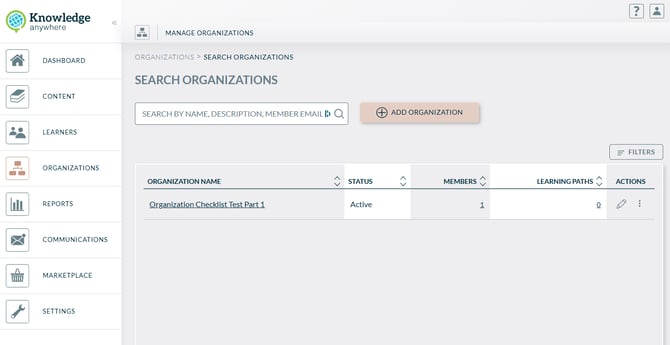
The Search Grid will appear, showing a list of all organizations.
-
Use filters and sorting to locate specific organizations.
-
Accessing the Organizations Section as an Organization Admin
-
Log in as an Administrator.
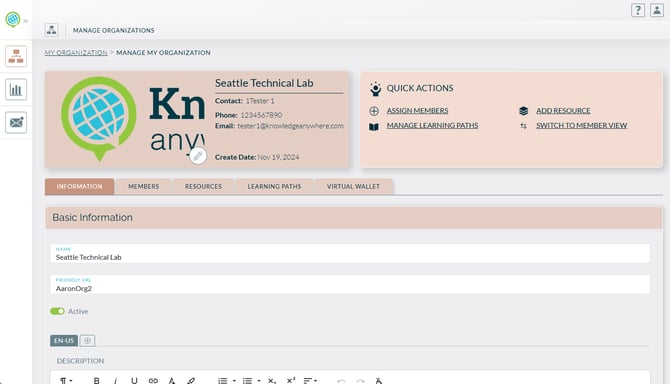
- You'll be ported to your Organization
Creating and Editing Organizations as a Global Admin
-
Add New Organization
-
Click + Add Organization.
-
Fill in required fields (e.g., name, description, logo).
-
Click Save.
-
-
Edit Organization
-
From the Search Grid, click on an organization name.
-
Update details and Save.
-
Note: Organizations must be marked as active in order to be visible to learners. Utilize the Filters to view inactive Organizations
Organization Details - Management
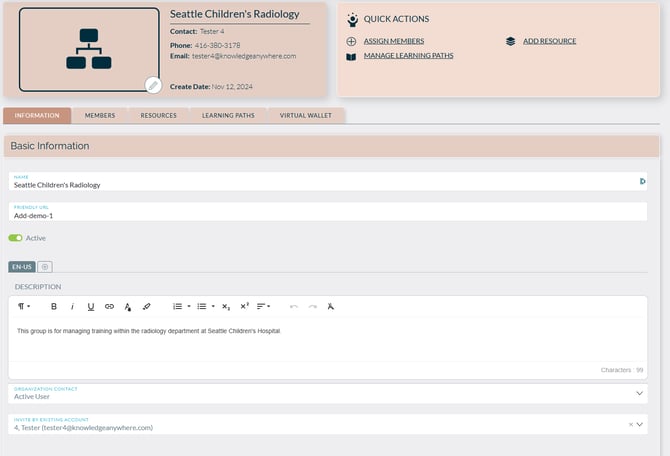
- Information
- Edit the name, URL, and description
- Designate the Organization Contact
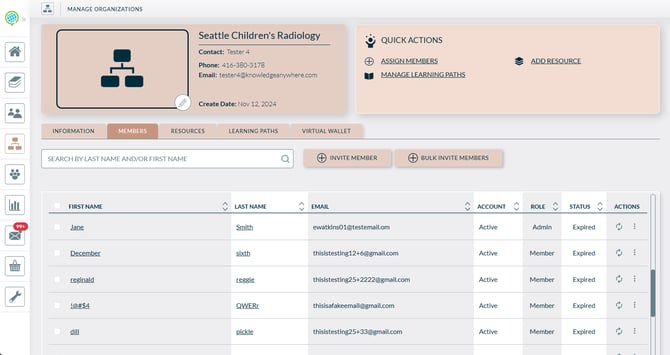
- Members
- View current members in a grid.
- Add/remove members individually or via bulk actions.
- Assign roles (e.g., Admin, Learner).
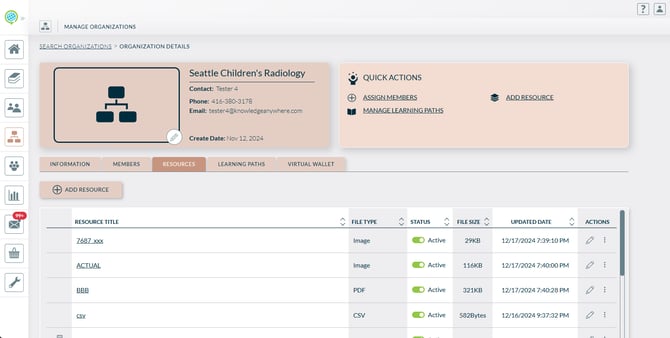
- Resources
- Create a grid of downloadable or viewable resources.
- Add content relevant to the organization.
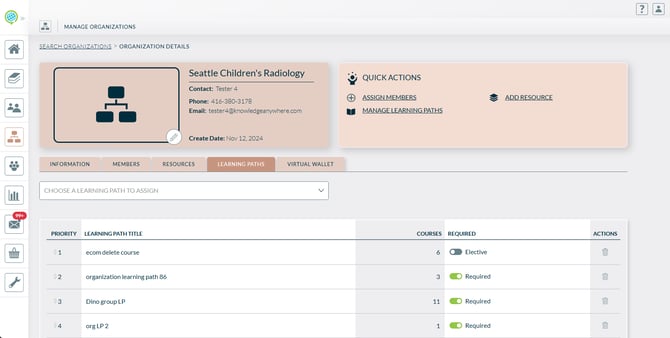
- Learning Paths
- Assign structured learning paths to the organization.
- Add or remove paths as needed.
- Virtual Wallet (If enabled)
- Add or Apply for Virtual Wallet Points
- Distribute these virtual wallet points to Organization members