![2617210b577d672136104a4f5660e04f07acf843-removebg-preview.png]](https://help.knowledgeanywhere.com/hs-fs/hubfs/2617210b577d672136104a4f5660e04f07acf843-removebg-preview.png?height=40&name=2617210b577d672136104a4f5660e04f07acf843-removebg-preview.png)
The Knowledge Anywhere mobile app extends your existing Knowledge Anywhere LMS. Learners log in as usual, see the same courses as on the web, and gain one major benefit: they can download eligible courses, complete them offline, and have progress sync automatically when they’re back online. Admins and managers still see accurate tracking and completions in the LMS.
The mobile app is focused on the learner experience; administration stays in the web LMS. This keeps mobile use simple and task-oriented for learners, while admins and authors continue to manage programs, content, and reporting from the tools designed for those workflows.
Note: The screenshots in this article were taken on a Samsung Galaxy S25 Ultra. Minor visual differences may occur depending on mobile device.
Getting Started
If you’re a learner: Download “Knowledge Anywhere LMS” from the iOS App Store or Google Play, enter your organization’s subdomain, log in with your usual credentials, and you’re in.
If you’re an admin: Nothing is required; the app inherits your existing LMS configuration. The main thing to think about is which courses should be available offline, which is configured on the course in the web LMS. It’s also worth testing your SSO or direct login flow through the app and making sure your branding looks right in the mobile context.
Who Benefits
The mobile app is especially valuable for organizations and teams that need learning to happen beyond a traditional desk-based setting.
- Field and frontline teams - retail associates, nurses, technicians, drivers, construction crews, and others whose work happens on the move rather than at a workstation.
- Compliance-driven roles - environments where training must be completed on time, regardless of whether learners are near a computer that week.
- Traveling and remote teams - situations where mobile access makes it easier to complete learning during time in transit or away from a desk.
- Microlearning and onboarding programs - use cases where short, mobile-friendly content fits naturally into the flow of the day.
If most of your learners work at a desk, the web LMS will usually cover what they need. The mobile app really helps when people are on the move, have spotty internet, or need more flexible ways to get their training done.
How It Connects to Your Existing LMS (and How You’ll See It Day to Day)
The Mobile App is a natural companion to the Knowledge Anywhere LMS you already run. It doesn’t replace your LMS, it's moreso a natural extension:
-
Assignments, due dates, learning paths, and completions are all managed in the LMS. Update something there, and learners see it in the app.
-
Reporting stays centralized. Progress made in the app appears in your existing reports and admin views—no extra tools or sync jobs.
-
Branding is consistent. Logos, colors, and background imagery come straight from your LMS theme, so there’s no separate mobile branding to maintain.
-
Languages carry over automatically. Any languages enabled in your site are available in the app; the UI chooses a language based on the learner’s profile, device, or your site default.
In practice, that tight connection between the app and LMS shows up in everyday scenarios:
-
A logistics company assigns a safety refresher from the LMS. Drivers download it over Wi‑Fi at the terminal, complete it during a rest stop with no signal, and their completion is already logged when they return.
-
A retail chain adds a new onboarding path in the LMS. New associates complete it on their phones during their first shift, between customers, without tying up a back-office computer.
-
A healthcare system schedules required recertification. Clinicians pick up and continue their courses on different devices and in different facilities, even with spotty Wi‑Fi, and the LMS still shows a single, accurate record.
-
A sales team receives new product training. They take it on flights to client sites, and as soon as they reconnect, all completions appear in the LMS just like desktop-based training.
What the App Does
There are four things the app is built to excel at.
1. Easy access
Learners type in your organization’s subdomain (something like company.knowledgeanywhere.com) and the app loads the correct branding and login method for your setup; either SSO (SAML or OIDC) or a standard email/password login.
-jpg-1.jpeg?width=400&height=820&name=Media%20(12)-jpg-1.jpeg)
2. Show learners what they need to learn
The landing page is a mobile-friendly Content Catalog that replaces the web LMS’s /learning-paths/ page. It’s a clean card-based layout with two sections: one for Learning Paths, one for a flat list of all courses. Cards show thumbnails, course types, status indicators (Not Started, In Progress, Completed, Past Due), and progress bars. It’s designed to feel familiar if someone’s coming from the web app, just thumb-friendly.
-jpg-2.jpeg?width=300&height=615&name=Media%20(8)-jpg-2.jpeg)
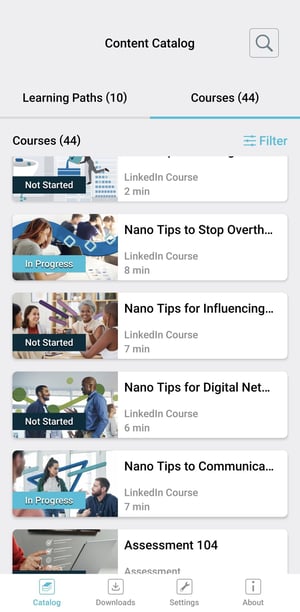
3. Let learners launch courses and accurately track progress
Tap a course, launch it, done. Progress gets tracked locally and syncs back to the learner's profile. Supported course types include eLearning (SCORM), Self Study, video, and PDF-based content.
4. Work offline
If a course is marked as “Offline Eligible,” learners can download it to their device, work through it without a connection, and the app takes care of syncing everything back to the LMS when they reconnect. Content is stored in encrypted local storage (so it can’t be extracted or shared), and downloads automatically refresh after 30 days to make sure nobody’s working from a stale version. Learn how to download courses here
-jpg.jpeg?width=400&height=820&name=Media%20(11)-jpg.jpeg)
A Few Things Worth Knowing
A handful of details that tend to come up in conversations about the Mobile App:
- Admin tools, reporting, user management, and course authoring - these stay in the web LMS where they belong.
- Inline registration and Forgot Password - these open in a browser popup rather than being rebuilt natively, because they tie back to web flows.
- The app is portrait-only on both iOS and Android. If a course has video, landscape can be used to watch said video.
- Offline downloads expire after 30 days, at which point the app checks for updates and prompts a re-download if needed. This keeps content fresh without anyone having to think about it.
- When progress exists in two places - Someone started a course offline on their phone but also made progress on their desktop, the most recent interaction wins.
- Register and Forgot Password will open in a web browser rather than being in the app For SSO logins, these buttons don’t appear at all (because your identity provider handles that flow).
- Downloaded content is encrypted and DRM-protected, Learners can’t pull files off their device or share them.
- Where the learner lands after login depends on their connection.
- Online - Content Catalog.
- Offline - They go straight to their Downloads page, because that’s what they can actually use.
For any questions or assistance using the Mobile App, please send an email to support@knowledgeanywhere.com.