![2617210b577d672136104a4f5660e04f07acf843-removebg-preview.png]](https://help.knowledgeanywhere.com/hs-fs/hubfs/2617210b577d672136104a4f5660e04f07acf843-removebg-preview.png?height=40&name=2617210b577d672136104a4f5660e04f07acf843-removebg-preview.png)
When two accounts belong to the same person (for example, someone re-registered and ended up with a duplicate), you can merge them into one. This guide explains exactly what happens to each kind of data so you know what to expect before you confirm a merge.
The Important Thing to Understand
A merge is one-directional. You choose which account survives — on the merge screen this is the account with the selected radio button. The other account is the one being absorbed.
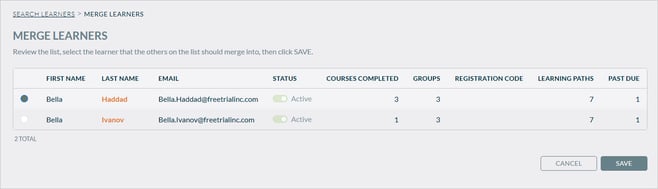
- The surviving account is the one everyone keeps using afterward. Here, Bella Haddad is the surviving account.
- The absorbed account is deactivated at the end of the merge — it is not deleted. Its record stays in the system, just inactive, so nothing is ever permanently lost.
By default the screen pre-selects the active account that has the most course completions. You can override this by selecting a different radio button.
Choosing the survivor is the most important decision you make. The survivor's profile is what the merged learner keeps — so pick the account with the correct name, email, and details.
What Carries Over, and What Doesn't
| Data | What happens |
|---|---|
| Name, email, custom profile fields | The survivor's are kept. The absorbed account's values are not copied. |
| Group memberships | Not carried over. The survivor keeps its own groups. |
| Directly assigned courses & learning paths | Carried over to the survivor. |
| Course completions & transcript history | Carried over to the survivor (de-duplicated — see below). |
| Learning path progress/completion | Carried over; the survivor is marked complete for any path the absorbed account finished. |
| Quiz results & attempts | Carried over. |
| Instructor-led / session registrations (offerings) | Carried over (for courses the survivor isn't already registered in). |
| Orders, external training records, ratings, comments, uploaded resources | Carried over. |
| Signed agreements on the absorbed account | Marked inactive. |
Answers to Common Questions
-
Where does the merged learner's profile come from? From the surviving account only — the name, email, and custom fields you see on the survivor are what remain. Nothing from the absorbed account's profile is copied over.
-
Two accounts have different information (e.g., a different last name). Which one wins? The survivor's value always wins. There is no field-by-field picker and no "most recent value" logic — whichever account you chose as the survivor keeps all of its profile details. The merge screen highlights any name that differs between the two accounts. That highlight is just a heads-up so you notice the mismatch before confirming. If you want the other account's name, either select that account as the survivor, or fix the name manually on the survivor after the merge.
-
What about group memberships? Group memberships are not merged. The survivor keeps the groups it already belonged to. If the absorbed account had access to training only because it was in a certain group, that access does not automatically come across — only directly assigned courses and learning paths transfer. If you need the merged learner in that group, add them to it after the merge.
-
Both accounts completed the same course, on different dates — will I see two completions? No. The merge never creates two completions for the same course.
-
- If both accounts completed the course, the merged learner keeps one completion — the survivor's completion date. The other date is dropped.
- If the survivor hadn't finished the course but the absorbed account had, the survivor is upgraded to complete using the absorbed account's completion details. (A merge can only move a course from incomplete to complete — never the other way around.)
- For courses that recur/renew on a schedule, each account's past renewals are kept as separate history entries (unless two land on the exact same date). That's an accurate renewal history, not a duplicate.
-
What about other profile attributes? The same "keep one, no duplicates" rule applies to registrations, ratings, uploaded resources, and external training records.
After the Merge
- The surviving account's access and notifications are recalculated to reflect everything it just gained.
- The absorbed account is set to Inactive.
- The action is recorded in an audit log (which accounts were merged, by which admin, and when).
Quick Checklist Before You Confirm
- Is the right account selected as the survivor? Its profile is what's kept.
- Do any highlighted fields (like last name) need attention? Decide before confirming.
- Did the absorbed account rely on a group for access? If so, plan to add the survivor to that group afterward.
Merging Users
- Open the Administrative Dashboard and select the Learners tab.
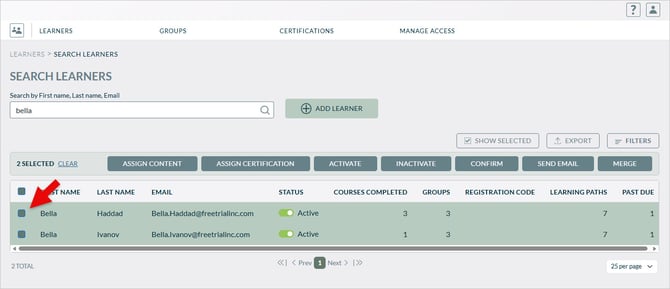
- Select Learners and then select the two duplicate learners you wish to merge by clicking the select checkboxes.
-
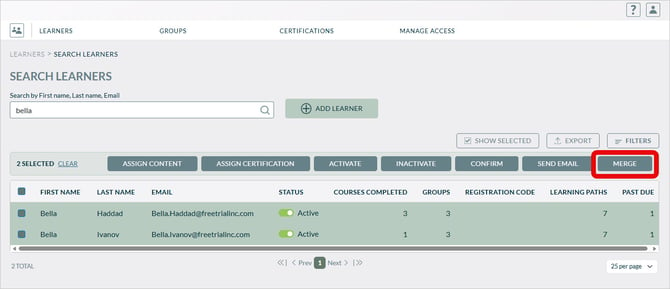
Select Merge.
-
A confirmation message will appear, .
-
You'll then be directed back to the learners section, with the Merged learner selected.