![2617210b577d672136104a4f5660e04f07acf843-removebg-preview.png]](https://help.knowledgeanywhere.com/hs-fs/hubfs/2617210b577d672136104a4f5660e04f07acf843-removebg-preview.png?height=40&name=2617210b577d672136104a4f5660e04f07acf843-removebg-preview.png)
Table of Contents
1. Overview
Approval workflows allow administrator approval before specific events occur. The four approval workflow types are:
- Access Requests - A learner requests enrollment in a Certification that is configured to require administrator approval.
- External Training Approval - A learner submits evidence of external training for administrator review.
- Certification Exam Approval - A learner's passing exam attempt is held for administrator validation before credit is granted.
- Attempt-Limit Increase Requests - A learner requests additional exam attempts after reaching the configured limit.
Designating Approvers
Global administrators can see approval requests and can approve/deny them.
Microsite administrators can see approval requests and can approve/deny them if the Certification is enabled for their microsite.
Other administrator roles cannot see or approve/deny approval requests.
Accessing the Approval Queue
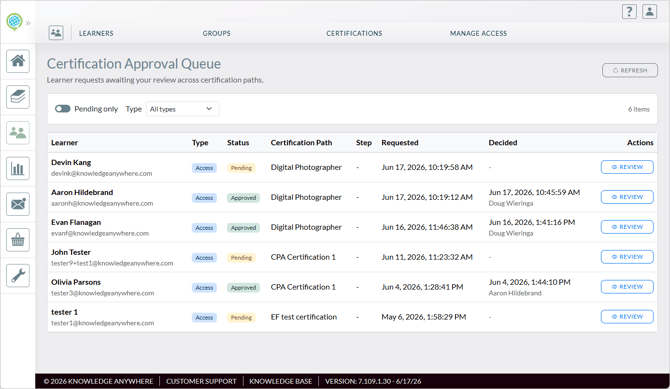
All approvals appear in a single unified administrator queue, so administrators have one place to manage them. To access the unified approval queue for all Certifications, go to Users > Certifications > Approvals.
To access the approval queue for a particular Certification, browse to that Certification under Courses and select the Approvals tab.
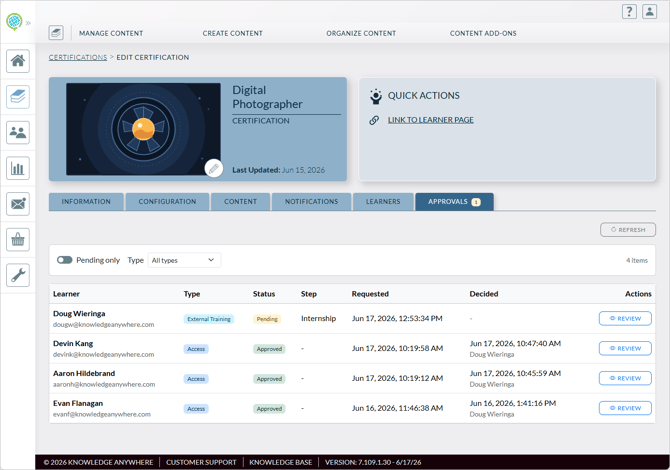
You can filter either queue to show pending approvals only or to show only one type of approvals.
2. Approving Access Requests
Access requests apply when Certification enrollment is configured to require administrator approval, meaning that the assignment requirement on the Configuration tab is Must Request Access if Unassigned (see Creating a Certification).
Learner Experience
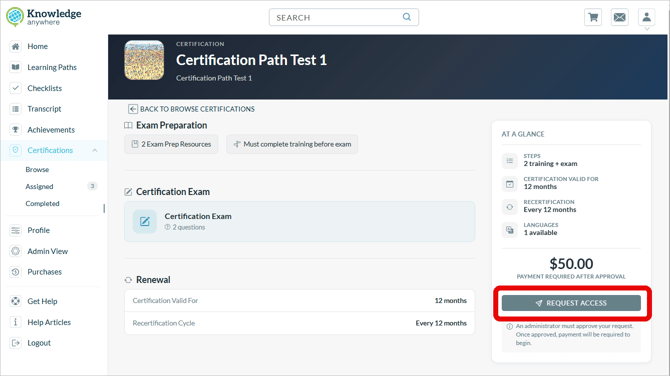
The learner initiates the approval process by locating the Certification under Certifications > Browse and clicking Request access. The button changes to Request Pending and remains disabled until the administrator responds. The learner cannot submit a second request while a request is pending.
Administrator Response
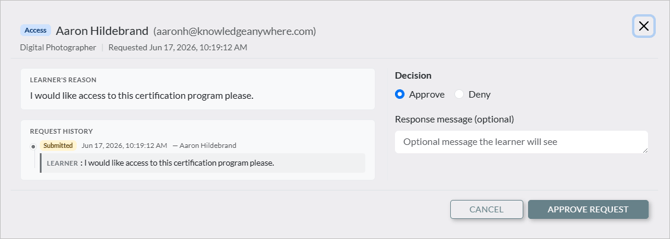
The learner’s access request will appear in the administrator’s approval queue.
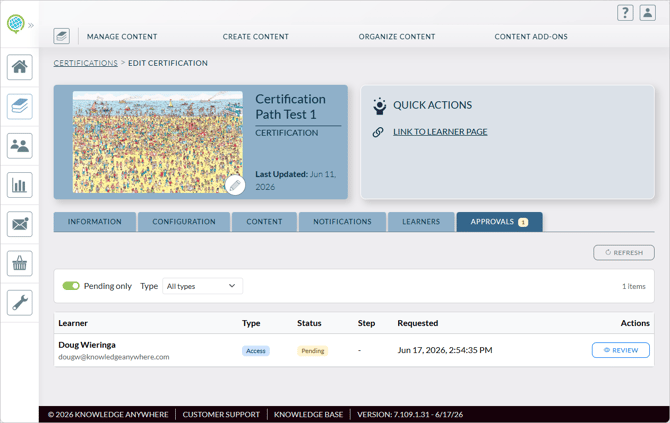
To approve the request:
- Click the Review button.
- Approve or deny the request.
- Approve - The learner is enrolled in the Certification. If the Certification requires payment, the learner will be prompted to purchase before they can begin. If an Assignment notification is configured, the learner receives a notification.
- Deny - The request is declined. The administrator can include a response message and optionally set a cooldown period before the learner can submit another request.
- Include a response message if desired.
Note: If no cooldown period is set, the learner can submit a new access request immediately after a denial.
3. Approving External Training
External training approval applies when a training step includes an External Training completion path with the Requires Administrator Approval option enabled. This is useful when learners need to submit evidence of training completed outside the LMS.
Learner Experience
When a learner selects the External Training completion path for a step, they see a submission form. Depending on how the Certification is configured, the form may include fields for:
- Document upload
- Digital signature
- Training date
- Training location
- Instructor name
After submitting, the step status changes to Pending Approval. The learner cannot edit the submission while it is under review.
Administrator Response
The submission appears in the administrator approval queue. The administrator can review the information provided and download the submitted document(s) before deciding whether to approve the request.
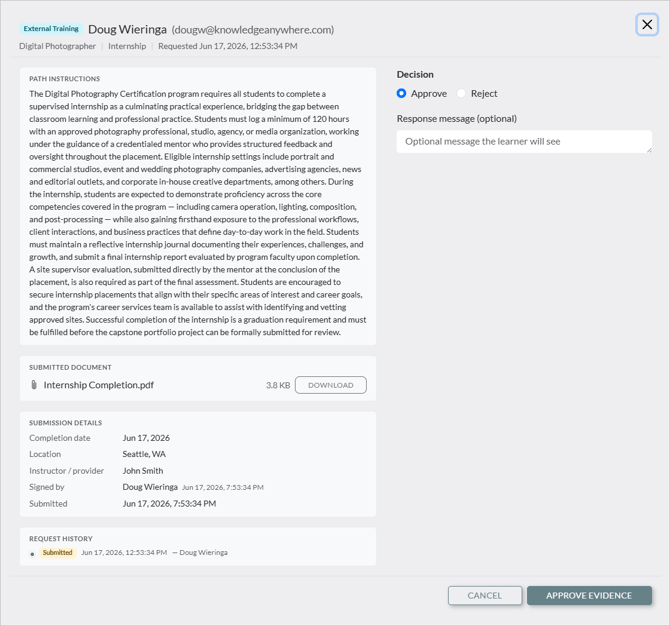
To approve the request:
- Click the Review button.
- Approve or deny the request.
- Approve - The External Training item is marked Complete.
- Reject - The External Training item status returns to In Progress. The learner can update their submission and resubmit. The administrator can include a response message and optionally set a cooldown period before the learner can submit another request.
- Include a response message if desired.
Note: When an external training submission is rejected, the submission is preserved in the history for audit purposes. The learner updates their submission in place rather than starting over.
4. Approving Certification Exam Results
The final certification exam can be configured to require administrator approval. When this is set, a learner who passes the exam does not automatically receive credit; their passing attempt is held in a Pending Approval state until an administrator reviews and approves it. Other certification exams (test-out and recertification) cannot be configured in this manner.
Learner Experience
After a learner submits a passing exam attempt, the step status changes to Pending Approval rather than Completed. The learner sees an Awaiting Approval indicator and cannot retake the exam while the approval is pending.
Administrator Response
The pending exam appears in the administrator approval queue. The administrator can:
- Approve - The certification exam is marked Completed. This typically means the learner will receive the Certification, as the Certification Exam is the final step in the process.
- Reject - The passing attempt is invalidated. The certification exam returns to Available and the learner can retake the exam if this is permitted by the Certification configuration. The administrator can include a rejection message and optionally set a cooldown period before the learner can attempt again. If no cooldown is set, the learner can resubmit immediately after a denial.
Note: When an exam attempt is not approved, the attempt's record is preserved with an invalidated flag for audit integrity. The attempt still counts toward the learner's attempt history for record-keeping, but does not count against their remaining attempts... they effectively receive a free retake.
5. Approving Attempt-Limit Increases
Attempt-limit increase requests apply when a Certification Exam step has a maximum attempt limit configured and the Certification is configured to allow learners to request additional attempts (rather than requiring a purchase or blocking additional attempts entirely). When a learner reaches the attempt limit, they see a Request More Attempts button.
Attempt limit increases to not apply to other types of exams.
Learner Experience
The learner clicks Request More Attempts and is required to enter a reason for the request. Only one request can be pending at a time. While a request is pending, the request button is replaced with a Request Pending indicator.
Administrator Response
The request appears in the administrator approval queue. The administrator can:
- Approve - The administrator specifies how many additional attempts to grant. The learner's attempt limit is increased by that amount and the learner can retake the exam.
- Deny - The request is declined. The administrator can include a denial message and optionally set a cooldown period before the learner can submit another request. If no cooldown is set, the learner can resubmit immediately after a denial.
Note: Granting additional attempts adds to the learner's existing limit, it does not reset or replace it. For example, if the original limit is 3 and an administrator grants 2 more, the learner has 5 total attempts.
Need Help?
If you have questions or run into issues, you can contact our support team at support@knoweldgeanywhere.com for technical assistance.