![2617210b577d672136104a4f5660e04f07acf843-removebg-preview.png]](https://help.knowledgeanywhere.com/hs-fs/hubfs/2617210b577d672136104a4f5660e04f07acf843-removebg-preview.png?height=40&name=2617210b577d672136104a4f5660e04f07acf843-removebg-preview.png)
What This Article Is For
This article serves as the technical reference for the Knowledge Anywhere Mobile App for admins. If you're an administrator considering using the mobile app in your organization, read this article to understand what the app experience entails. Check out the Learner Experience here.
Note: The screenshots in this article were taken on a Samsung Galaxy S25 Ultra. Minor visual differences may occur depending on mobile device.
1. Platforms and Devices
The app runs on both major mobile platforms. Orientation is portrait-only in the current release on every form factor; landscape support is something we’re looking at for a future version, but isn’t there yet.
|
Platform |
Devices |
Orientation |
|
iOS |
iPhone, iPad |
Portrait only |
|
Android |
Phones, Tablets |
Portrait only |
Layouts adapt automatically based on screen size: phones get a single-column grid, tablets get a multi-column layout. No configuration needed on your end.
Where you’ll find the app listed:
|
Store |
App Name |
Category |
Age Rating |
|
Knowledge Anywhere LMS |
Business / Education |
13+ |
|
|
Knowledge Anywhere LMS |
Business / Education |
- |
2. Authentication
Logging in happens in two steps, which is what lets the app work with any site without baking one organization’s branding into a single build.
Step 1a, Entering the URL
The learner types in your subdomain URL, for example:
company.knowledgeanywhere.com
In the example above, only the company part of the URL will need to be entered. The moment learners do, the app fetches your site’s branding (logos, colors, background imagery) and figures out which login method to show them. You can optionally enable “Remember domain” so returning learners skip this step.
-jpg.jpeg?width=600&height=1230&name=Media%20(12)-jpg.jpeg)
Step 1b, Entering the custom domain
The learner types in your custom domain URL, for example:
SiteB.Trainingcenter.com
In the example above, the entire URL will need to be entered. The moment learners do, the app fetches your site’s branding (logos, colors, background imagery) and figures out which login method to show them. Learners can optionally enable “Remember domain” so returning learners skip this step.
-jpg.jpeg?width=600&height=1230&name=Media%20(13)-jpg.jpeg)
Step 2, Logging in
Which login screen a learner sees depends entirely on how your LMS is configured:
|
Method |
What it looks like |
Good to know |
|
SSO |
A single button that kicks off your SAML or OIDC flow with your enterprise identity provider |
Registration and Forgot Password buttons are hidden... Your IdP handles all of that |
|
Direct Sign-On |
Standard email + password fields |
Registration and Forgot Password are present, but they open the LMS web flow in a browser popup rather than being native to the app |
Offline login, why stored sessions matter
The app caches authenticated sessions locally, which is what makes offline access possible in the first place. When a learner’s device has no connection, the app doesn’t try to hit your auth server, it recognizes the cached session and unlocks the encrypted local content store so they can get to their downloaded courses. It’s a small detail, but it’s the thing that keeps the offline experience from being a dead end.
3. Language Support
The app supports every language you’ve enabled on your LMS, nothing extra to configure. The interesting part is how it decides which language to use when a learner first opens it.
It walks down this list until it finds an answer:
- The user’s profile language, if one is set in the LMS
- The device’s locale (this is the mobile-specific aspect. The web LMS doesn’t have this signal)
- Your site’s default LMS language as a final fallback
A language selector is available in the in-app menu, unless you’ve chosen to lock language selection at the site level.
Multilingual courses
If a course is published in multiple languages, learners get a dropdown on the course detail screen to pick their version. By default, they’ll see the version that matches their UI language when one’s available. The fallback and display logic mirrors what the web LMS does, so behavior stays consistent across platforms.
4. How Sync Works
The app is a client that talks to your LMS, it’s not its own source of truth. That shapes how sync behaves.
Here’s when the app reaches out to the LMS:
|
Trigger |
What happens |
|
Login |
Full initial sync of the catalog, assignments, and progress |
|
App launch |
Refresh of the catalog and assignments |
|
Course completion or exit |
Background write-back of progress, completion status, time spent, and quiz/assessment scores |
|
Device reconnects after being offline |
Any queued offline progress gets flushed to the LMS |
When two sources of progress disagree
This comes up more than you’d expect. A learner starts a course offline on their phone, gets 10% in, then opens the same course at their desktop that evening and gets to 50% before their phone ever reconnects. What wins?
The short answer: last-write wins. The most recent progress write is the one that sticks. This is the default... for now.
Where the data lives
All catalog, assignment, deadline, and completion data originates in your LMS. The app doesn’t maintain any separate database of truth, only reading from the LMS and writes back to it. That’s a design choice we’re deliberate about, because it means anything you change in the LMS flows through to the app without needing a separate reconciliation step.
5. Offline Content Management
Offline access is the reason most customers reach for the mobile app, so it’s worth walking through how it actually works end to end.
What makes a course “downloadable”
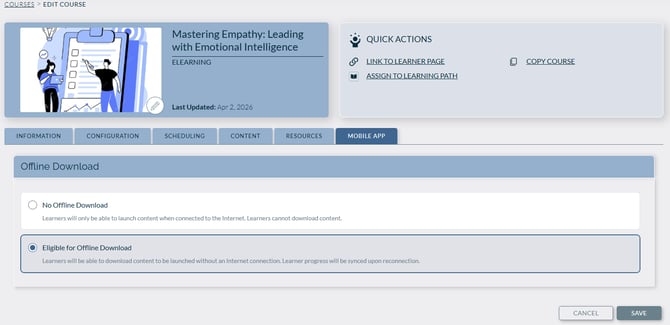
A Download button only appears in the app when an admin has tagged the course as “Offline Eligible” in the LMS. The content types that are currently supported offline are:
- Video courses (Video Course)
- PDF-based content (Self-Study course)
- HTML-based SCORM courses (eLearning course)
If you want a course to be available offline, that eligibility flag is the toggle to flip on the course settings.
The download states a learner sees
|
State |
What it looks like |
What they can do |
|
Eligible, not downloaded |
“Download” button with a download icon |
Tap to start the download |
|
Downloaded |
“Downloaded” label with a checkmark |
Tap to open a small popup with Launch and Delete Download |
|
Expired (older than 30 days) |
Flagged as expired |
App checks whether the content has been updated and prompts re-download |
Security and DRM
Downloaded content doesn’t sit around in plain view. It’s stored in encrypted local storage, and the app enforces DRM to prevent anyone from extracting files off their device or sharing them externally. The encrypted cache also holds any pending progress data... completion status, time spent, quiz and assessment scores until it can be synced back.
Why offline learners land on a different page
If someone opens the app while offline, they don’t land on the Content Catalog (which wouldn’t load anyway). They go directly to My Courses > Downloads, so they can immediately launch what they already have. Small thing, but it makes the offline experience feel intentional instead of broken.
Why downloads expire after 30 days
This isn’t arbitrary, it’s there so learners never end up completing a stale version of a course. When a download hits 30 days old, the app checks with the LMS to see if the content has changed. If it has, the learner gets prompted to pull down the current version. If nothing’s changed, the download refreshes quietly.
6. Branding, It’s All Inherited
Good news: you don’t configure the mobile app’s branding separately. It pulls directly from your LMS skin/theme, which means:
- You Company logo will appear at the top of every page in the app
- Colors, typography, and background imagery come from your personalization settings
- Changes you make in the LMS theme flow through to the app the next time a learner logs in
The same design system as the web LMS, same typography, button styles, card layouts, and filter controls so the experience feels continuous if a learner jumps between the two. The layout adapts between phone (single column) and tablet (multi-column), but the visual identity doesn’t change.
7. Security and Encryption
For the security folks reviewing this before rollout, here’s what to know:
- Local storage is encrypted. Offline content and any cached user data are stored encrypted on the device.
- DRM controls are in place to prevent unauthorized extraction or redistribution of downloaded content.
- Session tokens follow standard secure practices. SSO tokens are handled by the identity provider flow itself, not stored in plaintext on the device.
- All network communication between the app and your LMS site happens over HTTPS.
If your security review needs deeper detail, specific cryptographic primitives, where keys live (iOS Keychain / Android Keystore), and DRM implementation specifics, those live in Knowledge Anywhere’s security documentation.
8. Privacy and Data Handling
Quick reference information you may need for App Store / Google Play submissions, privacy reviews, or end-user questions:
|
Item |
Value |
|
Privacy Policy |
https://knowledgeanywhere.com/privacy-policy/ |
|
Support URL |
https://help.knowledgeanywhere.com |
|
Support Email |
support@knowledgeanywhere.com |
For the App Store and Google Play data disclosure sections (Data Linked to You / Data Not Linked to You), refer to the current Privacy Manifest in the app submission package.
9. What’s In The App Right Now
Here’s the current feature set:
- Subdomain + SSO/direct login, with stored sessions for offline login
- Persistent navigation with search and filters available on every page
- Search Results page with sort options (Relevance, Title A–Z, Title Z–A, Rating, Type)
- Content Catalog with both a Learning Paths tab and a flat course list tab
- Course details screen with Launch, Download, and View Resources actions
- Offline content management and a dedicated Downloads page
- Connectivity-aware landing page (offline learners go straight to Downloads)
- Offline support for video, PDF, and HTML-based SCORM-lite courses
- Site branding and multi-language options and content
- Legal menus (Terms of Use, Privacy Policy, EULA)
The things that are intentionally not in the mobile app:
- Admin tools, reporting, and content authoring (these remain in the web LMS)
- Registration and password recovery (these open in a browser overlay instead)
- Discussion / comments features
- Landscape orientation (videos can be viewed in landscape)
10. Things That Tend to Come Up
A few details worth having in your back pocket for when questions come in:
- Portrait only for now, both platforms, both form factors.
- Registration and Forgot Password on Direct Sign-On sites open a browser popup rather than a native form. On SSO sites, those buttons don’t appear at all.
- Offline learners land on the Downloads page, not the Catalog. This is deliberate.
- Downloads expire after 30 days, which triggers a content-update check. This is how we keep stale content from lingering.
- Last-write-wins is the current conflict resolution model. Admin-configurable logic is on the roadmap.
- Everything is inherited from the LMS including branding, language list, course eligibility, assignments. There’s no separate mobile configuration surface to maintain, which is by design.