![2617210b577d672136104a4f5660e04f07acf843-removebg-preview.png]](https://help.knowledgeanywhere.com/hs-fs/hubfs/2617210b577d672136104a4f5660e04f07acf843-removebg-preview.png?height=40&name=2617210b577d672136104a4f5660e04f07acf843-removebg-preview.png)
Contents
1. Setting up a Classroom Course/Webinar
2. Adding a Classroom Location
3. Assigning Classroom Training and Enrolling Learners
Classroom courses are similar to other types of courses, but there are important differences:
- Classroom courses include in-person training and webinars.
- A classroom course can have multiple offerings. An offering is a time and location where the course is offered. This provides the flexibility to offer the same course repeatedly.
- Offerings of classroom classes are linked to locations and instructors. When creating a classroom course, it’s a good idea to add classroom locations and instructors before setting up the course offerings.
-
With classroom courses you can manage enrollment, allowing you to track who is scheduled to attend and who actually attends. Waitlists are supported to help manage situations where enrollment exceeds class capacity.
1. Setting up a Classroom Course/Webinar
To set up a classroom course:
- Verify that you have set up the location for the course. See below for details.
- If you are specifying an instructor, verify that the instructor is a user in the LMS with the Admin role Instructor. See LMS Admin Roles Overview for details.
- Go to Content > Manage Content > Courses.
- Click Add Course.
- Click I know what I want.
- Click Classroom Course.
- Complete the following tabs, as you would for any type of course. See Courses Overview for details.
- Information
- Configuration
- Scheduling
- Resources
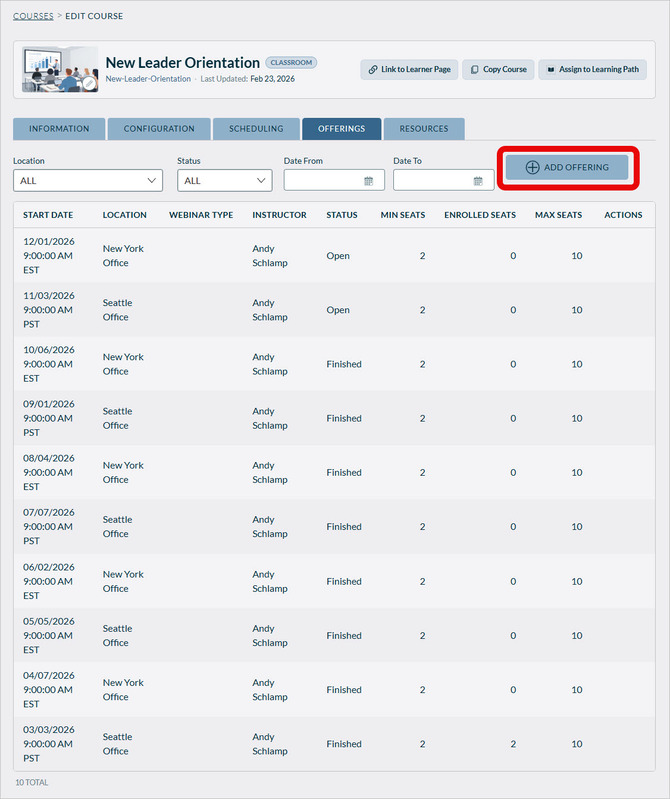
- On the Offerings tab, click Add Offering.
- Complete the form, specifying:
- The time the course/webinar will be offered
- If desired, the instructor. The instructor must have the Admin role Instructor.
- The location.
- If necessary, the webinar type (e.g., Zoom) and URL. For details, see Setting Up a Webinar.
- The minimum and maximum number of participants. If the number of participants exceeds the maximum, the overage will be waitlisted.
- Any restrictions on registration access: the enrollment cutoff date, sites and groups with access to the offering.
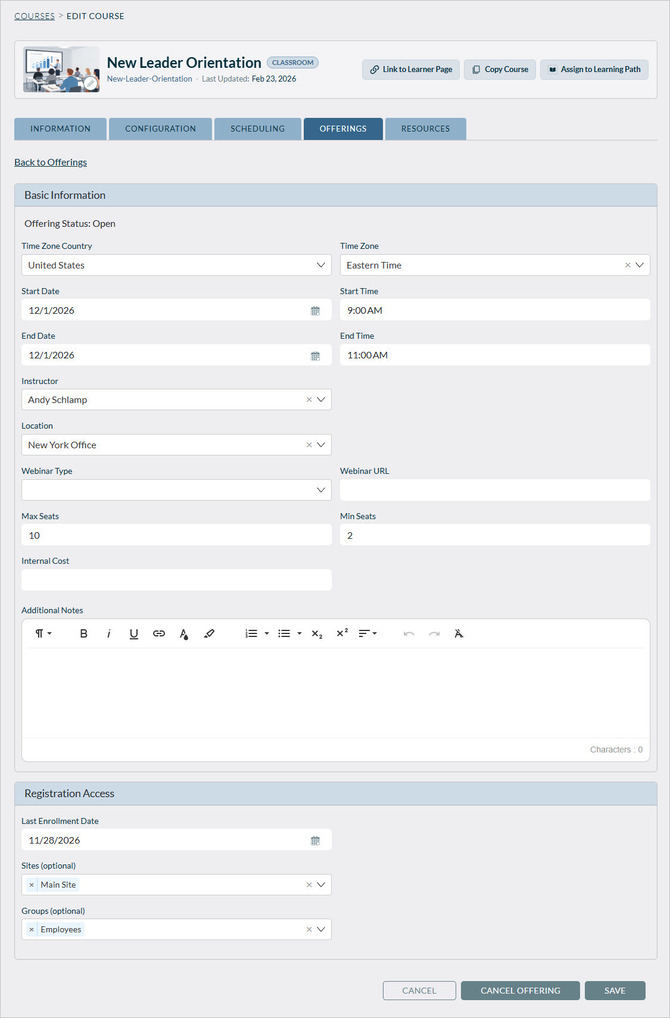
- Click Save.
- If necessary, add additional offerings.
- Assign the training. See below.
2. Adding a Classroom Location
To add a classroom location:
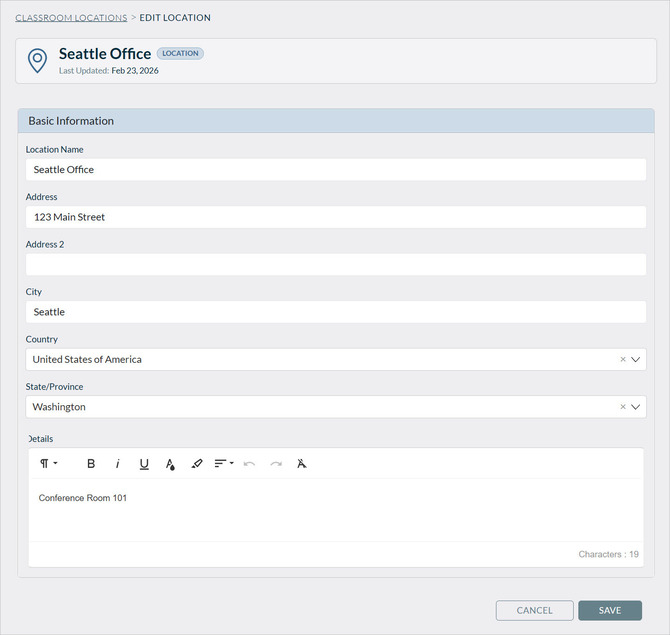
- Go to Content > Content Add-Ons > Classroom Locations.
- Click Add Location.
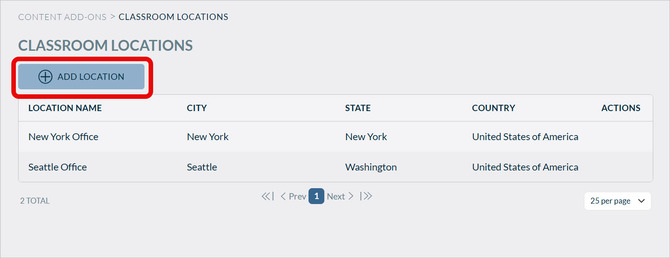
- Enter the Basic Information, then click Save.
3. Assigning Classroom Training and Enrolling Learners
Classroom courses are assigned in the same way as other courses -- by inclusion in a learning path, via directed learning, etc. For details see What’s the Best Way to Assign Learning: Learning Paths, Checklists, or Certifications?. However, an important difference is that the learner must be enrolled in an offering of the classroom course. The learner can do this themself, or an administrator can enroll them.
Learner Enrollment
If a learner is assigned a classroom course, they will see enrollment options.
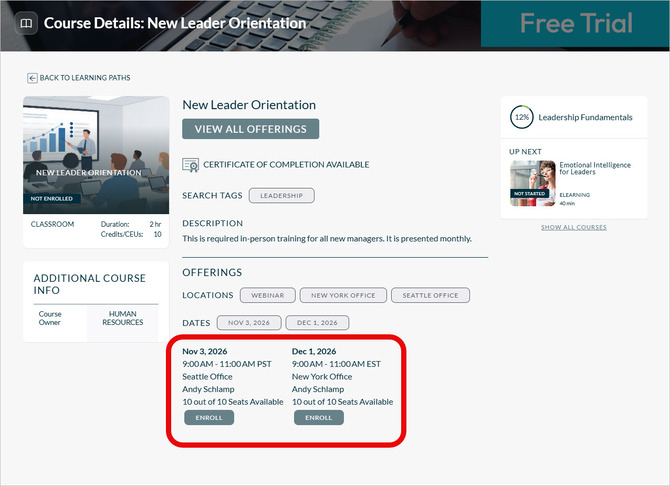
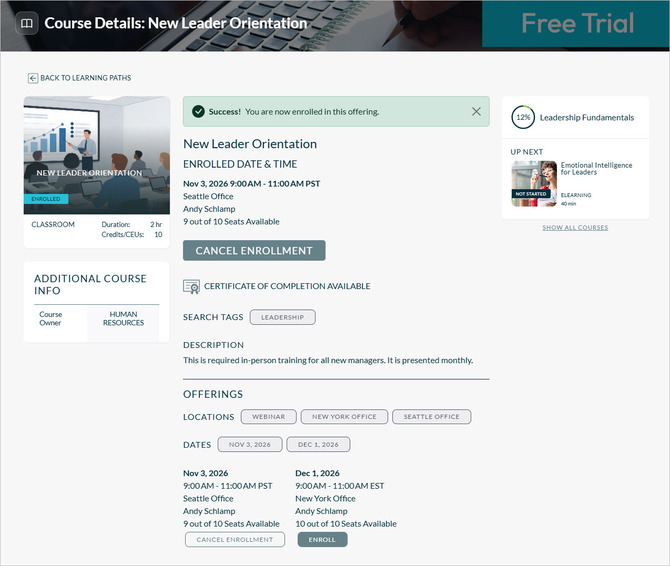
The learner clicks on an offering to enroll. Once they have done this, they are enrolled. They will see a confirmation with the option to cancel enrollment.
Admin Enrollment
Administrators can also enroll learners in classroom courses. To enroll a learner:
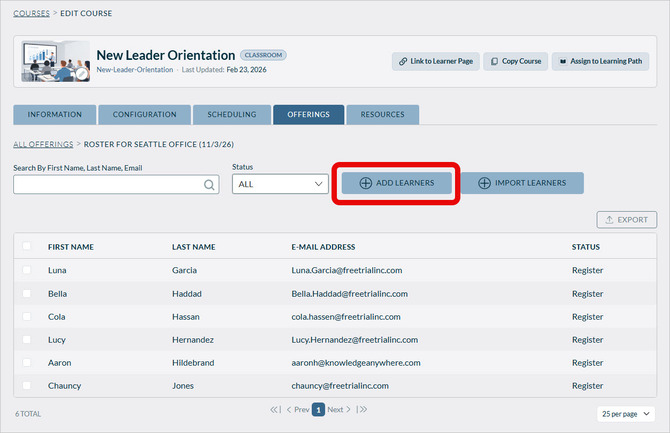
- Go to the Offerings tab for the course, hover over the desired offering, and click the roster icon.
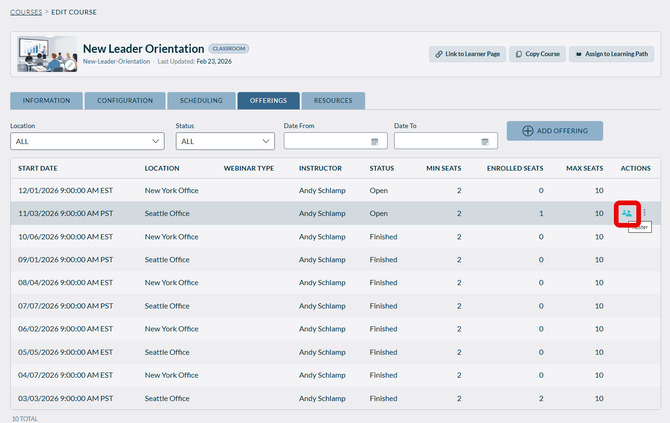
- Click Add Learners. Alternatively, you can click Import Learners to import via spreadsheet.
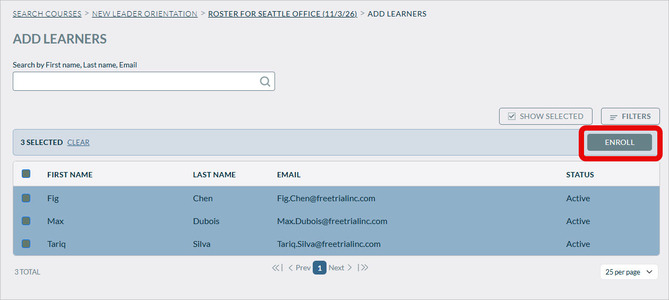
- Select the learners you want to enroll and click Enroll.
4. Managing Enrollee Status
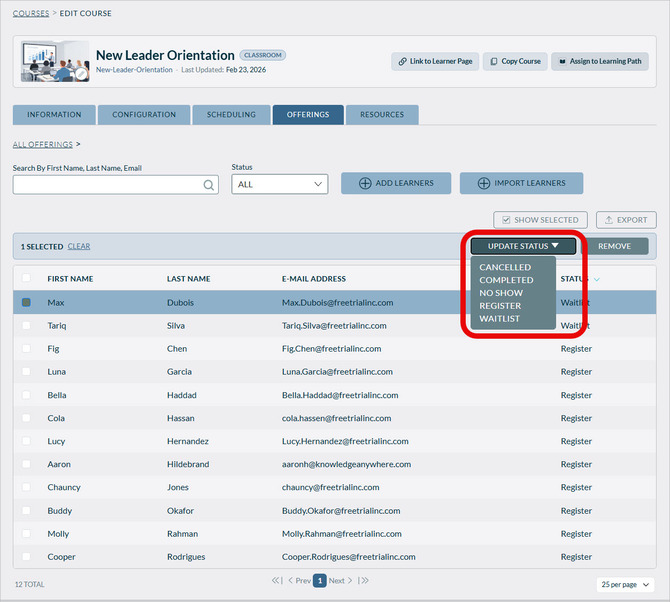
Administrators can manage enrollee status -- cancelled, registered, completed, no show, or waitlist. For example, you can change an enrollee's status from Waitlist to Register to enable them to attend the class.
To change enrollee status:
- In the roster click on the learner, then click Update Status and select the correct status.