![2617210b577d672136104a4f5660e04f07acf843-removebg-preview.png]](https://help.knowledgeanywhere.com/hs-fs/hubfs/2617210b577d672136104a4f5660e04f07acf843-removebg-preview.png?height=40&name=2617210b577d672136104a4f5660e04f07acf843-removebg-preview.png)
These “Content <-> Microsite” associations determine:
-
Which content appears on each microsite’s admin pages
-
Which microsite admins can manage that content
-
How all admins filter, report on, and bulk adjust content availability across microsites
Each content item can have zero, one, or many microsites associated with it. How you set these associations depends on the content type:
-
Courses: via the “Admin Access” section on the course Information tab
-
Learning Paths: via the “Admin Access” section on the learning path Information tab
-
Groups: via the “Admin Access” section on the group configuration tab
- Resources: via the microsite selector in the resource Information section
If no microsite is selected, the content item is treated as available to all.
Roles and Responsibilities
Global Admin
Global Admins are the only admin type that can fully manage distribution rules across microsites. They can:
-
View all content and its site associations in one place
-
Assign content to one or more microsites (courses, learning paths, resources, etc.)
-
Bulk assign or remove site access for many items at once
-
Filter and audit content-to-microsite coverage
- Manage and coordinate Microsite Admin cooperation
Microsite Admin
Microsite Admins operate inside the boundaries set by Global Admins:
-
They only see and can manage content associated with their microsite
-
They do not see global microsite filters that would let them inspect other microsites’ content
-
When they create certain content (like courses / learning paths), it is automatically associated with their microsite
How Global Admins Manage Distribution
1) “Content Site Management” overview grid (single pane of glass)
Global Admins have a dedicated page via the Content section called "Admin Access" to view distribution coverage across content at a glance.
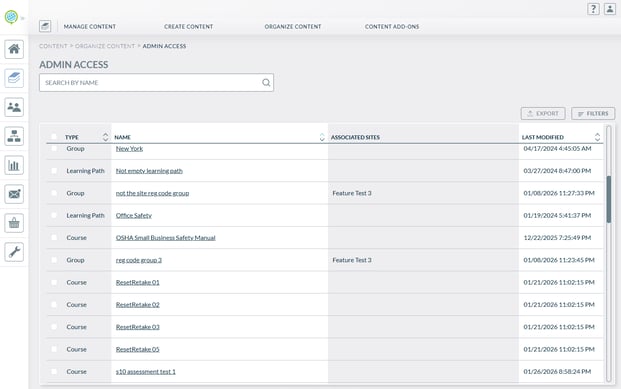
Grid information provides:
-
Name, Type (Course / Learning Path / Group / Resource), Associated Sites, Last Modified
-
Filtering:
-
Content type
-
Site (microsite) the content is associated with
-
- Content names are clickable to jump into the item for direct management
Why this matters: It turns distribution from a hidden per-item setting into an auditable, report-like view of your entire catalog.
2) Assigning microsites on individual items & unique behaviors
Courses
When editing a course, the Information tab includes an “Admin Access” section at the bottom.
Unique behaviors:
-
Assignments are preserved when the course is edited/updated
-
Global Admins can filter course listings by microsite in the course grid
-
Microsite admins do not see the microsite filter
-
If a microsite admin creates a course, it is automatically associated with their microsite
Learning Paths
When editing a learning path, the Information tab includes an “Admin Access” section at the bottom.
Unique behaviors:
-
“Admin Access” section on the Information tab
-
Multi-select microsite dropdown
-
Microsite admins do not see the global microsite filter
-
If a microsite admin creates a learning path, it is automatically associated with their microsite
Groups
When editing a group, the Information tab includes an “Admin Access” section at the bottom.
Unique behaviors:
-
Assignments and group attributes are preserved when the group is associated with a microsite
-
Microsite admins do not see the microsite filter
-
If a microsite admin creates a group, it is automatically associated with their microsite
Resources
When editing a resource, the Information tab includes an “Admin Access” section at the bottom.
Unique behaviors:
-
Assignments and group attributes are preserved when the group is associated with a microsite
-
Microsite admins do not see the microsite filter
- If a microsite admin creates a group, it is automatically associated with their microsite
3) Bulk assigning/removing microsite access (high-volume management)
Global Admins can bulk adjust distribution from the content overview grid to avoid editing items one by one.
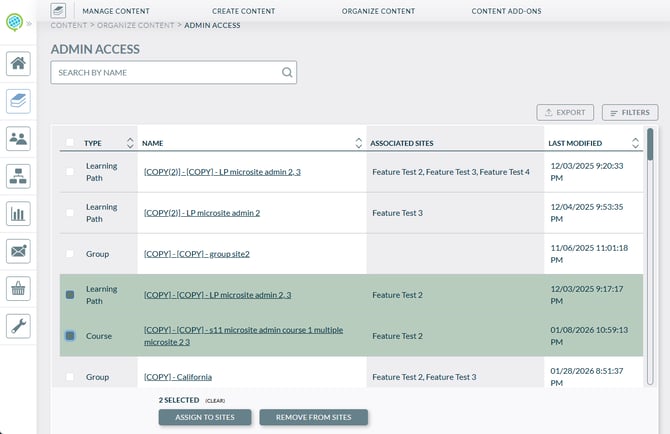
Assign Microsite Associations in bulk:
-
Grid shows checkboxes per content item + “Select All” for the current page
-
Selecting items reveals a bulk actions toolbar
-
Actions include:
-
Assign to Sites - opens a site selection modal
-
Remove/Assign Access - opens a site removal modal (i.e., remove associations, and/or re-assign)
-
-
After:
-
The system displays a results summary (success/failure counts)
-
Errors are shown for items that couldn’t be processed
-
The grid refreshes automatically to reflect new associations
-
Putting it all together: the lifecycle of distributed content
-
Global Admin audits distribution using the Content Site Management grid
-
Global Admin assigns microsites either:
-
per item (edit course/learning path/resource), or
-
in bulk from the grid
-
-
Microsite Admin experiences limited but tactical management:
-
only sees content assigned to their microsite
-
cannot use microsite filters to inspect others
-
newly created content is auto-associated to their microsite
-
For more information content assications and microsite admin capabilities, please reach out to support@knowledgeanywhere.com.