![2617210b577d672136104a4f5660e04f07acf843-removebg-preview.png]](https://help.knowledgeanywhere.com/hs-fs/hubfs/2617210b577d672136104a4f5660e04f07acf843-removebg-preview.png?height=40&name=2617210b577d672136104a4f5660e04f07acf843-removebg-preview.png)
Accessing the Checklists
-
Log in to the LMS with admin permissions.
-
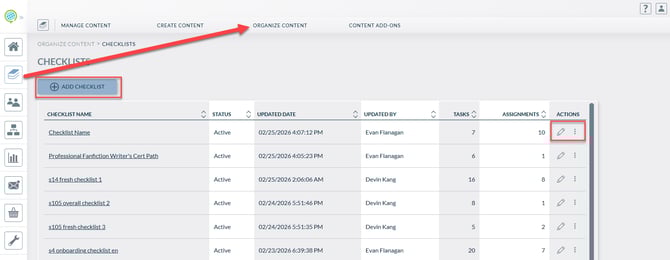
From the admin dashboard, navigate to the Content section, hover over the Organize Content header, and select Checklists section
-
Select Create or Manage to begin.
Creating a New Checklist
-
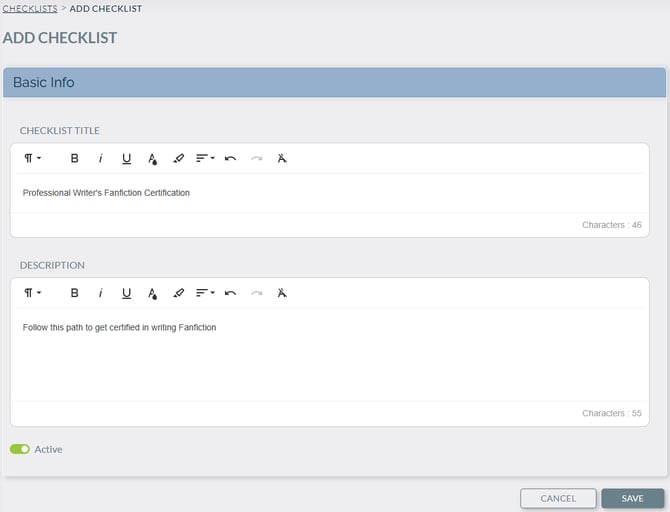
Click Create Checklist.
-
Enter a checklist name (e.g., “New Hire Onboarding” or “Sales Training”).
-
Add a description to provide learners with context.
-
Choose whether to start from a template or build from scratch.
Adding Tasks
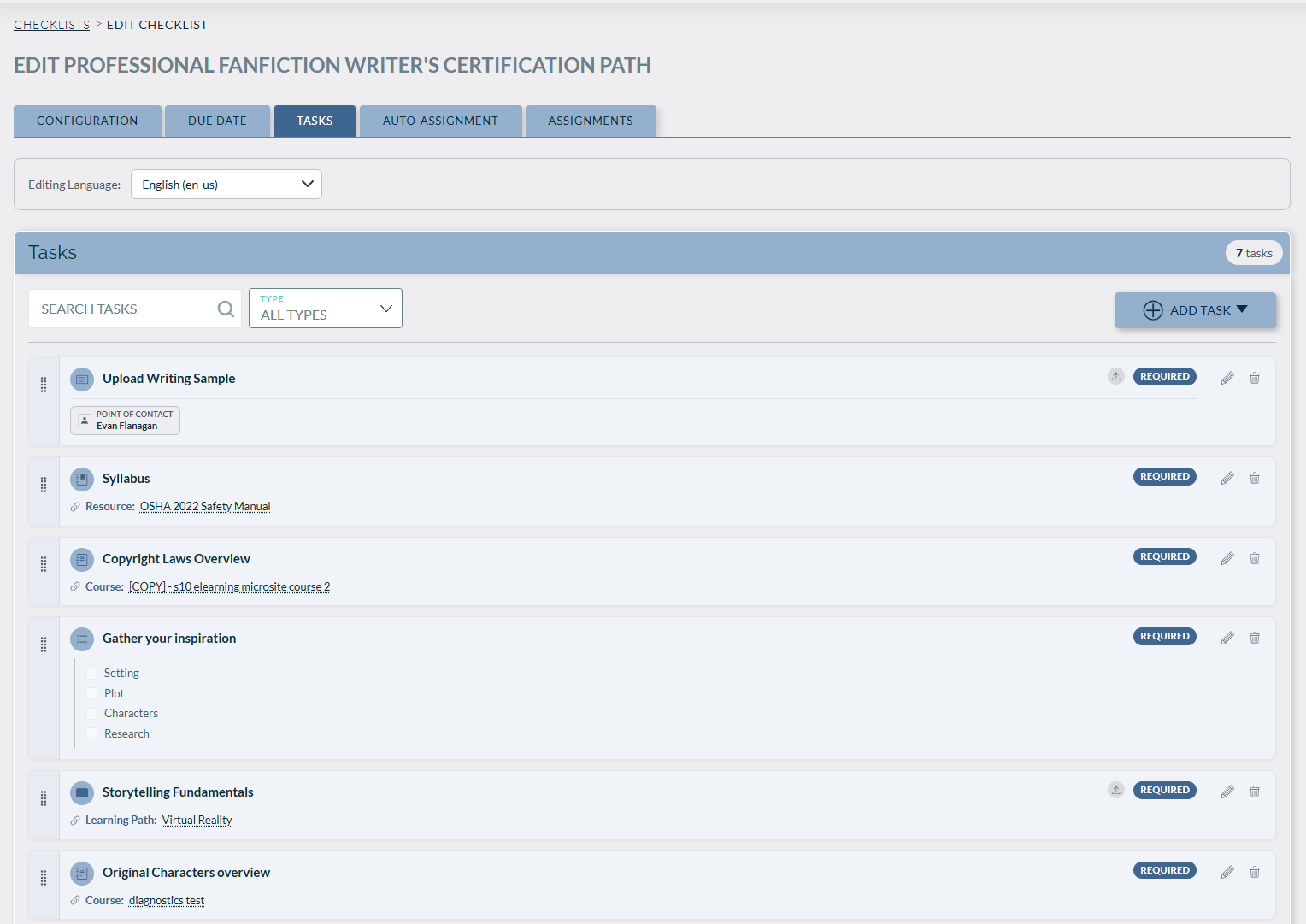
Tasks define the steps learners need to complete. To add tasks:
-
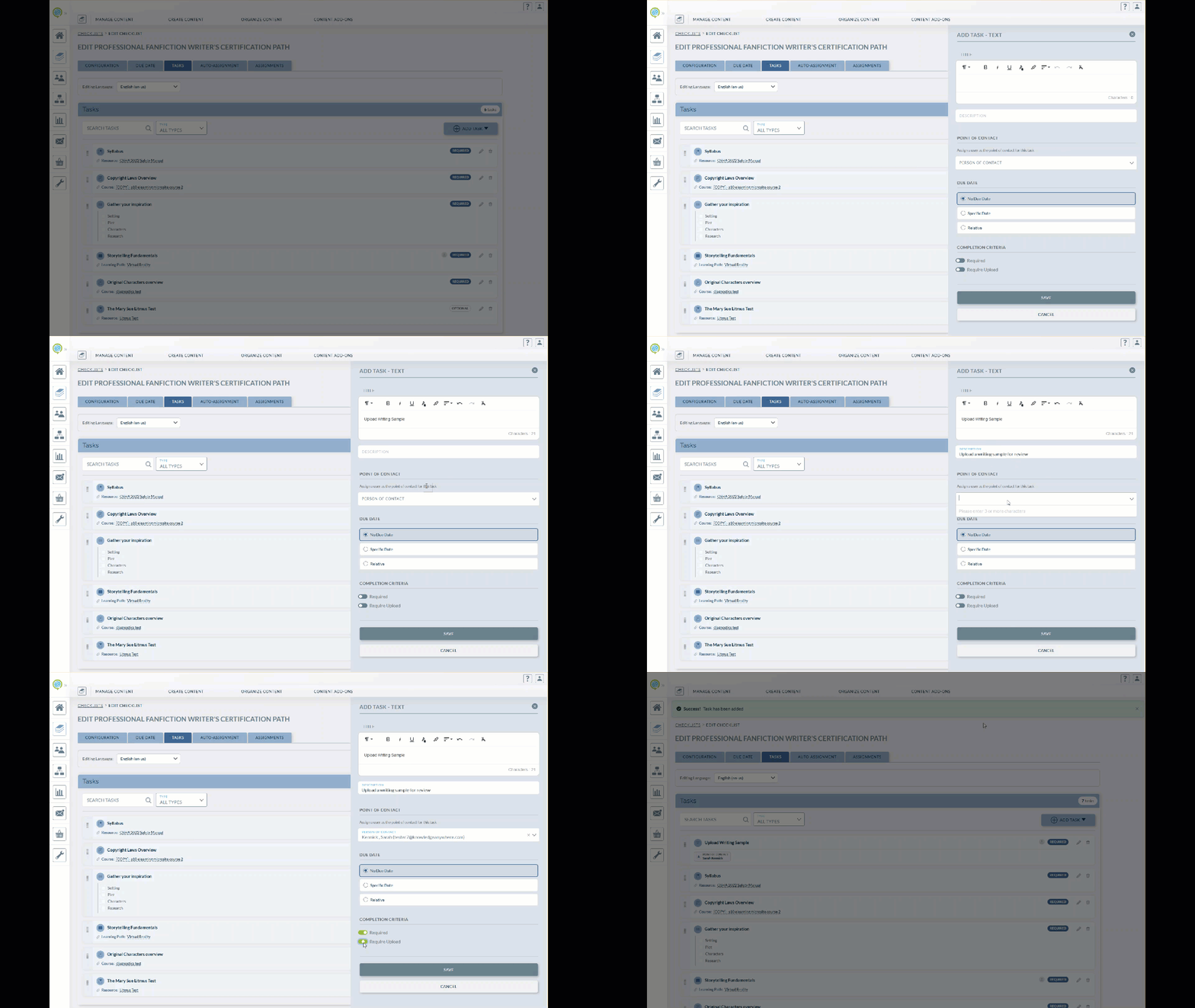
Select Add Task.
-
Choose a task type:
-
Course: Assign a course from the LMS.
-
Learning Path: Assign a learning path from the LMS
-
Resource: Upload policies, handbooks, or guides.
-
External Link: Direct learners to outside systems or forms.
-
Text: Create a unique task (e.g., “Meet with manager”).
-
-
Set a due date, if required.
-
Add optional instructions or notes.
Assigning Checklists
Admins can assign checklists via:
-
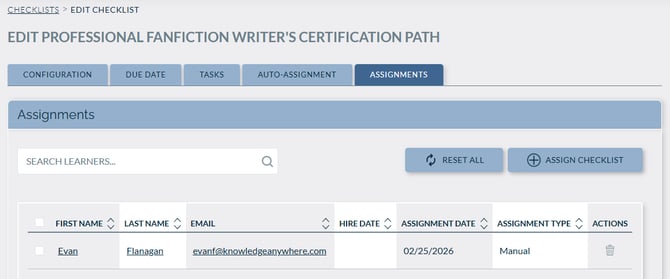
Individual learners
- Assign the Checklist to specific learners by searching their account.
-
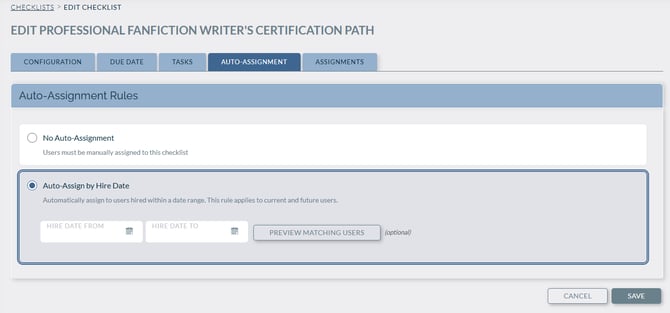
Hire Date
- Implementing a Hire Date for learner will auto-assign the Checklist to all learners within the date range selected.
Tracking Progress
Admins can utilize two checklist reports to check progress.
-
Checklist Details Report - Helps monitor overall completion statistics for onboarding checklists across learners to quickly see who’s on track, who’s past due, and who needs follow-up.
-
Checklist Summary Report - Gives administrators a quick, roll-up view of how learners are progressing through a checklist broken down by individual checklist items to easily identify what’s getting completed and what’s being missed.
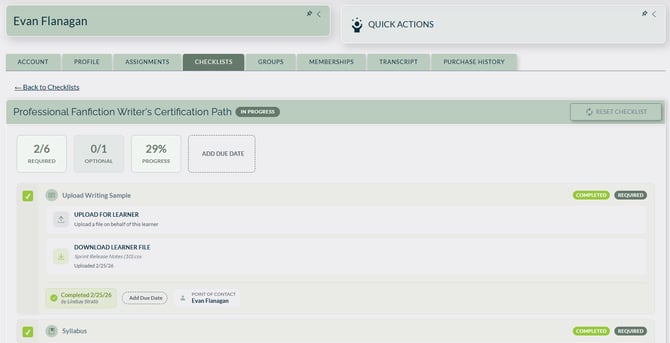
Admins can also check a Learner's progress via their profile.
Notifications and Communication
Depending on the configuration of the checklists, learners will be informed of assignment, and due dates via automated email notifications
-
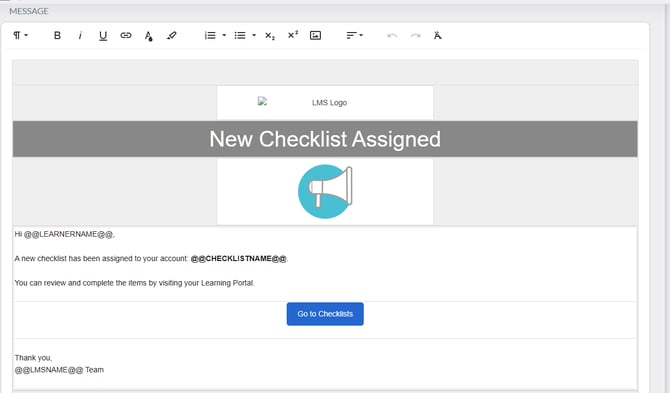
Checklist Assigned - This email is sent when a learner is assigned a checklist
-
Due Dates - The Due Date notification emails are sent at the standard cadence if there is a due date assigned for the checklist and/or learner
For any questions about this feature, please reach out to support@knowledgeanywhere.com