![2617210b577d672136104a4f5660e04f07acf843-removebg-preview.png]](https://help.knowledgeanywhere.com/hs-fs/hubfs/2617210b577d672136104a4f5660e04f07acf843-removebg-preview.png?height=40&name=2617210b577d672136104a4f5660e04f07acf843-removebg-preview.png)
What Is a Certification?
A Certification is a structured program that leads to a formal credential. A Certification requires you to complete a defined set of training steps and pass a final exam to attain the certification. Some Certifications also expire after a set period, requiring you to recertify to keep your credential current.
Certifications are used for programs where completing training and demonstrating competency both matter; for example, a safety certification, a product knowledge credential, or a professional qualification your organization offers to employees, partners, or customers.
Note: Certifications can be set up in many different ways. Some of the features and options described in this article may not be available to you, depending on how an individual Certification has been set up.
Table of Contents
- Finding a Certification
- Certification Details
- Working Through Your Certification
- Approvals
- Notifications
- Earning Your Certification & Recertification
Finding a Certification
Browsing the Catalog
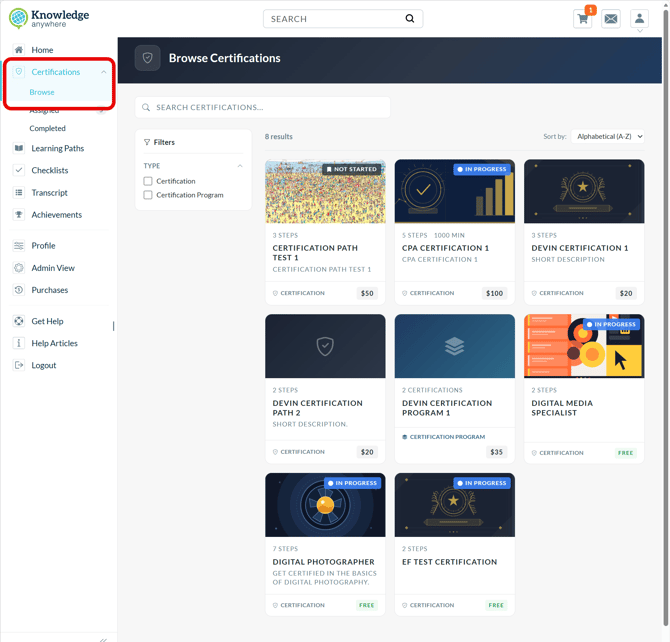
If your training program includes Certifications they will appear in your training catalog alongside courses and other learning content. You can browse or search the catalog to find Certifications available to you. In the Browse view, each Certification appears as a card showing its name, description, and image.
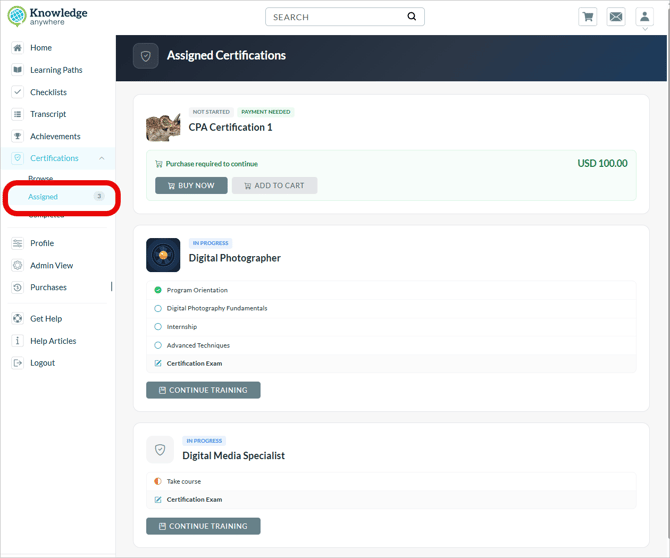
If you click on Assigned Certifications you will see a different view showing your progress and other details pertaining to your Certifications (e.g., Certifications that have been assigned to you).
Depending on how your program is set up, a Certification may be available for self-enrollment, may require you to request access, and will be available to you only if it has been assigned to you by an administrator (and will not be visible otherwise).
Direct Assignment
An administrator may assign a Certification to you directly. When this happens, the Certification appears in your Assignments and you will receive an email notification letting you know it has been assigned. You can open it from your Assignments dashboard or from the notification email.
Access Requests
If a Certification is not open for self-enrollment, you will see a Request Access button on its detail page instead of an enrollment or start option. Selecting Request Access submits your request to an administrator for review.
While your request is pending, the button changes to Request Pending. You will be notified by email when the administrator responds.
- If your request is approved, you are enrolled in the Certification and can begin.
- If your request is denied, you will see the administrator's response message on the detail page. Depending on how the Certification is configured, you may be able to submit a new request immediately or after a waiting period.
Some Certifications may have a cost associated with them. If a Certification requires payment, you will be prompted to complete a purchase before you can begin.
The Certification Detail Page
The Certification detail page is your home base for the Certification. It shows you the steps required to obtain the Certification and allows you to access them. The detail page updates as you complete each step, so you always have a clear picture of your progress towards the Certification.
Working Through the Certification
Training Steps
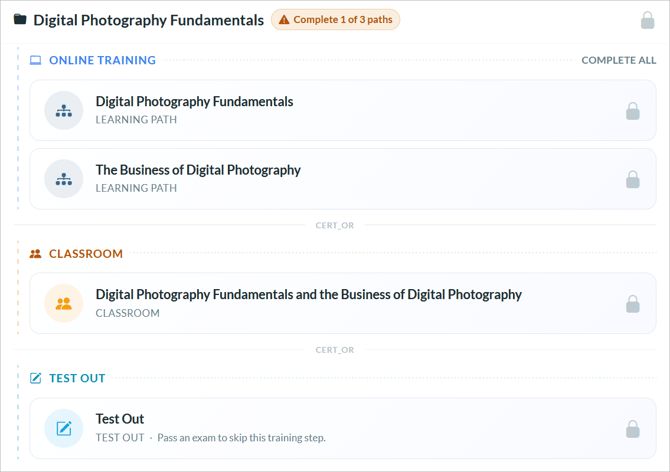
Most Certifications include one or more training steps before the final exam. Each step represents a distinct requirement; for example, completing a product knowledge module or submitting evidence of classroom attendance. Requirements may include:
-
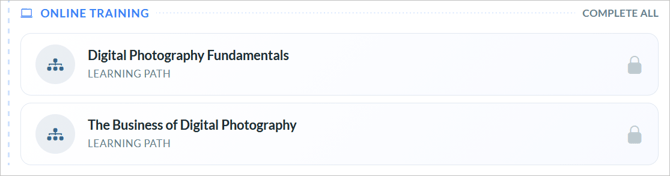
Online Training - Complete one or more courses, assessments, or learning paths within the LMS.
-
Test Out - If you already have the knowledge, you may be able to take a short quiz to test out of the training and satisfy the step without completing the full course content.

-
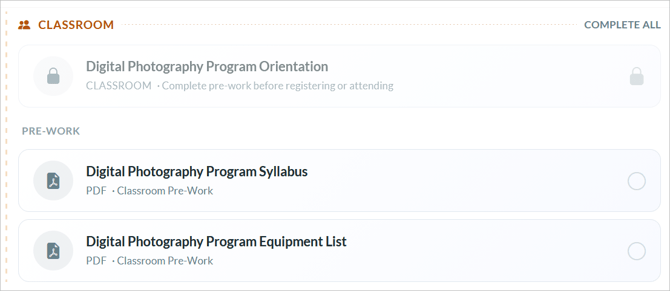
Classroom Training - Attend an instructor-led session. The step may include pre-work to complete before the session and post-work to complete afterward. In the example below, you must download and review the Program Syllabus and Equipment List before you can attend the classroom training. Once you do so, the classroom training will unlock and you can register
-
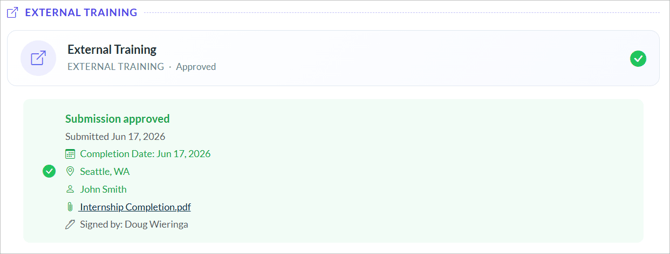
External Training - Submit evidence of training you completed outside the LMS, such as taking an industry course or attending a conference. You may be asked to provide a document, a date, a location, an instructor name, or a digital signature. See Approvals below for what happens after you submit.

Depending on how the Certification is configured, you may need to complete steps in a specific order, or you may be free to complete them in any sequence. If steps must be completed in order, steps will be unlocked as predecessor steps are completed.
Required and Optional Items
Within an online training completion path, individual items may be required or optional. Required items must be completed to finish the path. Optional items are available for additional learning but are not needed to move forward.
The Final Exam
Once you have completed the required training steps, you can take the final exam. The exam must be passed to earn the Certification.
Depending on how the exam is configured, you may encounter:
- A time limit - you will see a countdown timer and must submit before time expires.
- A navigation restriction - you may need to answer questions in order without going back, or you may be able to move freely between questions and review your answers before submitting.
- An attempt limit - if you do not pass, you may be able to retake the exam, up to a maximum number of attempts. If a waiting period is required between attempts, you will see when you are eligible to retake.
- An approval requirement - in some cases, your passing result is reviewed by an administrator before the exam is marked complete. See Approvals below.
Tip: If you reach the attempt limit on the final exam and need additional attempts, you may be able to submit a request for more attempts. See Approvals below.
Approvals
Some actions in a Certification require an administrator to review and approve. When the action is pending approval, the relevant step or action will show an Awaiting Approval status. You will be notified by email when a decision has been made.
External Training Submissions
An external training requirement may require you to submit evidence that you have completed the requirement. If so, you will be prompted to do so when you mark the step complete. The step will enter a Pending Approval state while an administrator reviews what you submitted.
-
If approved, the step is marked complete and you can continue.
-
If rejected, you will see the administrator's feedback and can update your submission and resubmit. A waiting period may apply before you can resubmit.
Exam Results
Some exams require an administrator to review the exam results (once you pass) before credit is granted. If this applies, passing the exam does not immediately complete the step; it enters a Pending Approval state. You will be notified when the administrator responds.
Attempt Limit Increase Requests
Some exams have attempt limits. If you have reached the attempt limit on an exam and the Certification allows you to request more attempts, you will see a Request More Attempts button. You will be asked to provide a reason for your request. While your request is pending, the button changes to Request Pending.
- If approved, the administrator will grant a specified number of additional attempts and you can retake the exam.
- If denied, you will see the administrator's response. A waiting period may apply before you can request again.
Notifications
The Certification system sends you email notifications at key points in the process. Which notifications you receive depends on how each individual Certification is configured, but may include:
- Assignment - You have been assigned to a Certification.
- Approval decision - An administrator has approved or denied a request you submitted.
- Certification earned - You have successfully completed the Certification.
- Recertification window open - Your Certification is approaching its expiration date and you can begin the recertification process.
- Expiration reminders - Reminders sent at configured intervals before your certification expires to remind you that you will need to recertify to keep the Certification.
- Certification expired - Your certification has passed its expiration date.
- Grace period expiring - Your certification is in its grace period and will lapse soon if you do not recertify. The grace period is time, if any, allowed between certification expiration and lapse.
- Certification lapsed - Your certification has lapsed because the grace period ended without recertification.
- Recertification earned - You have successfully completed a recertification cycle.
Earning Your Certification
When you pass the final exam and all required steps are complete, your certification is awarded. The Certification detail page updates to show a Certified status along with your certification date.
If the Certification is configured to issue a certificate, you can download it directly from the detail page.
Recertification
If your Certification has an expiration period, you will need to recertify before it expires to keep your credential current; for example, you may need to recertify annually. Depending on now the the Certification is configured, you may receive a notification when your recertification window opens; this is typically a set number of days before your expiration date, giving you time to complete the recertification process while your current certification is still active.
The recertification process works the same way as the initial certification, but the content may be different. For example, a shorter refresher course and updated exam rather than the full original program. This is dependent on how your program is set up.
Your certification can be in one of the following states:
- Certified - Your certification is active and current.
- Recertifying - Your recertification window is open and you are working through the recertification steps.
- Expired - Your certification has passed its expiration date. You are within the grace period and can still recertify.
- Lapsed - The grace period has ended. You must complete recertification to restore your certified status.
Caution: Do not wait until your certification expires to begin recertifying. Your recertification window opens before the expiration date, so you can renew while your certification is still active.
Need Help?
If you have questions or run into issues, you can contact our support team at support@knoweldgeanywhere.com for technical assistance.